---
title: "Assets"
description: "Where assets come from, how to add them by hand or import repositories, and how to move or delete them."
url: https://whitespots.io/docs/appsec-portal/products-and-assets/assets
slug: appsec-portal/products-and-assets/assets
publish_date: 2026-10-30T19:42:15.000Z
last_modified: 2026-10-30T19:42:15.000Z
---
# Assets
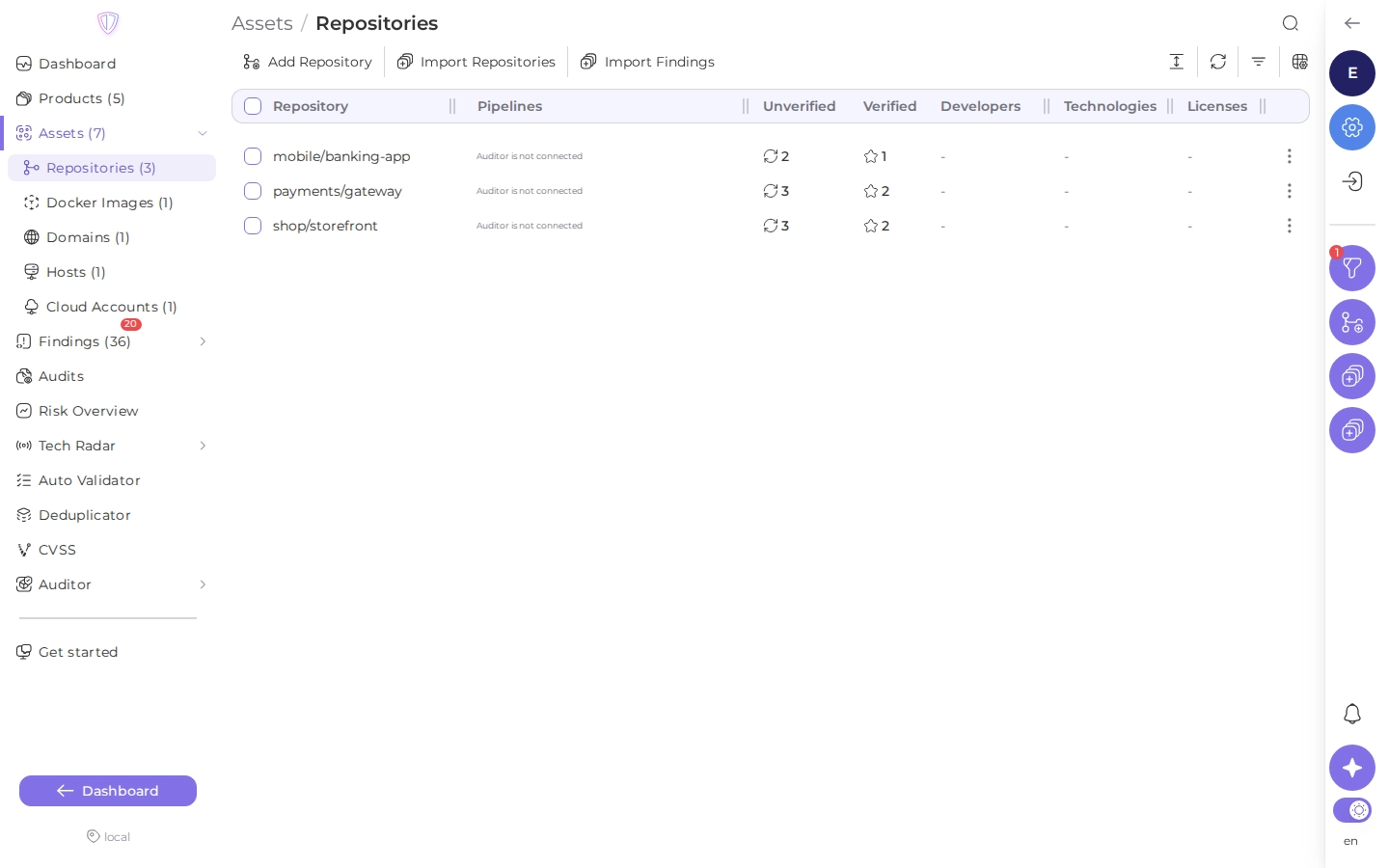
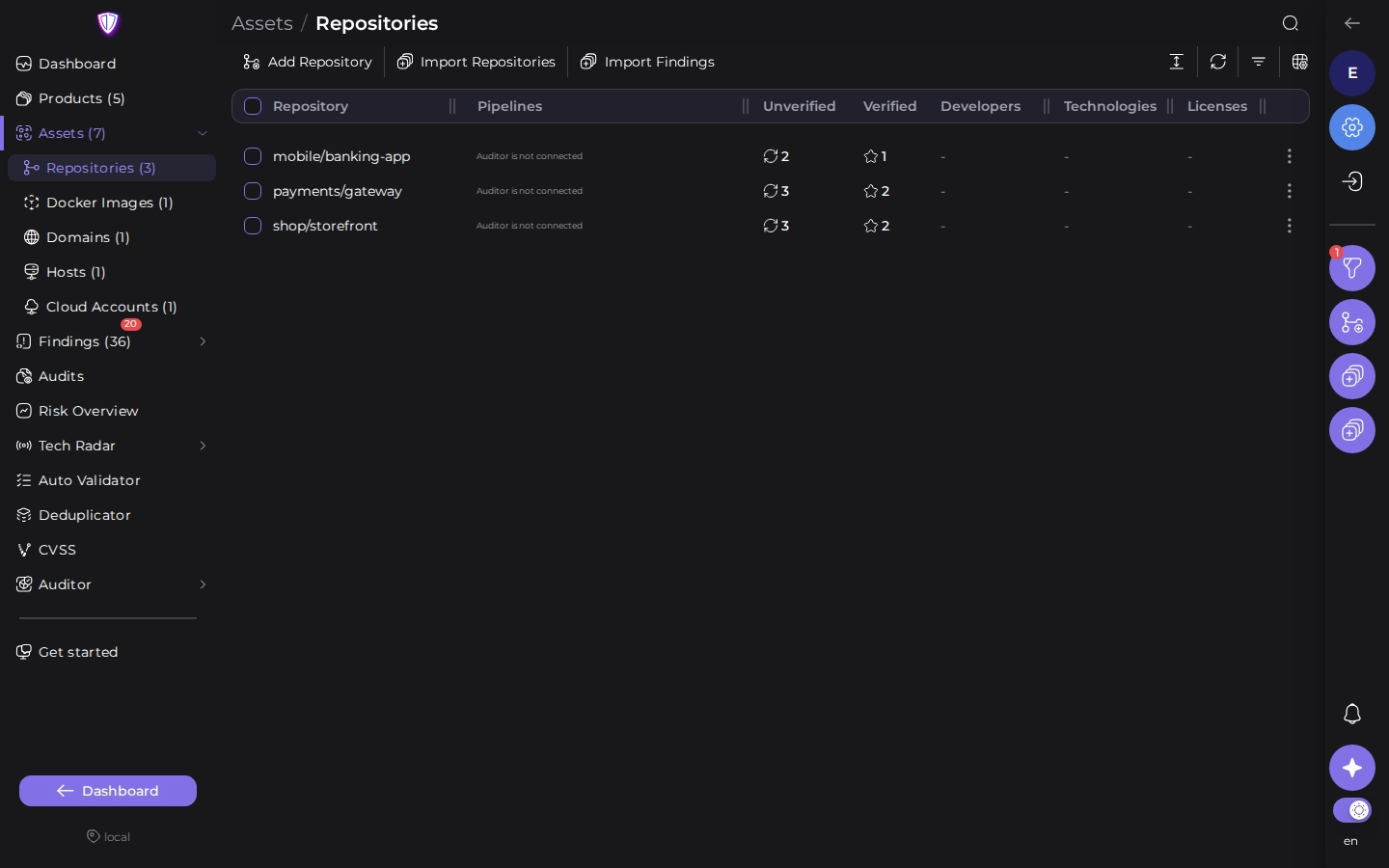
An asset is one thing a product is made of. There are five types:
| Type | Value | Example |
| --- | --- | --- |
| **Repository** | the SSH clone URL | `git@gitlab.com:whitespots-public/appsec-portal.git` |
| **Docker Image** | the image name without a tag | `registry.gitlab.com/whitespots-public/appsec-portal/back/auto_validator` |
| **Domain** | a domain name | `whitespots.io` |
| **Host** | an IP address | `0.0.0.0` |
| **Cloud Account** | a readable account name, plus an IAM key ID and secret | `production-aws` |
**Assets** in the sidebar lists the assets of all products, one link per type. On a product's
page, **Assets** lists only that product's assets.
 ## Where assets come from
Most assets come in by themselves:
- **Pushes.** With the [version control](https://whitespots.io/docs/appsec-portal/integrations/version-control#scan-every-push)
webhook, the first push to a repository adds it to the default product and scans it.
- **Container registries.** New images in a connected
[container registry](https://whitespots.io/docs/appsec-portal/integrations/container-registries) are added and scanned.
- **Scans.** A domain audit with Subfinder or Naabu adds the subdomains and hosts it finds to the
audit's product. See [Scanners](https://whitespots.io/docs/appsec-portal/find-vulnerabilities/scanners#infrastructure).
- **Imports.** A scan result that names an asset adds it to its product if it isn't there yet.
See [Import scan results](https://whitespots.io/docs/appsec-portal/find-vulnerabilities/import-scan-results).
You can also add them yourself:
- **From version control.** Import repositories from GitLab, GitHub, Bitbucket or Azure DevOps,
for example ones that nobody pushes to (see below).
- **By hand.** Click **Add Repository**, **Add Docker Image** and so on above the list.
New assets that don't name a product land in the default product, **Unsorted**: move them to
their products from time to time (see below).
## Add an asset by hand
Open **Assets**, pick the type in the sidebar and click the add button. Fill in:
- **Asset type** and the value (see the table above). The form shows an example for each type.
- **Product**, when you add it from the list of all assets.
- **Repository Link Config**, for repositories: how to build links from a finding to the file and
line in the repository. See [Version control](https://whitespots.io/docs/appsec-portal/integrations/version-control).
- **Job sequence**: the scans that an [audit](https://whitespots.io/docs/appsec-portal/find-vulnerabilities/audits/run-an-audit) of
this asset runs. See [Sequences](https://whitespots.io/docs/appsec-portal/find-vulnerabilities/audits/sequences).
- **Asset tags**: tags to filter assets and findings by.
The value is also what Auditor scans: it receives it as a variable of the audit jobs.
## Import repositories from version control
With the push webhook, repositories come in on their own as people push. Import them by hand to
bring in the ones that nobody pushes to, or to put many repositories into their products at once.
Connect your version control first (see [Version control](https://whitespots.io/docs/appsec-portal/integrations/version-control)).
Then open a product's **Assets**, or **Assets** in the sidebar, and click **Import Repositories**.
1. Select the version control integration.
2. Select the repositories. In the list of all assets, choose a product for each repository, or
**Set Default Product for All**.
3. Click **Import**.
Repositories that are already in the product are marked. The list shows the repositories that
the integration's token can see. If users sign in with SSO through your version control, their
repositories are imported the first time they log in.
## Open an asset
Click the asset's row in the list, or **View** in its menu. The asset page shows the same fields as the form, and you can
change them there.
In the list of all assets, **View in product** opens the asset inside its product.
## Move an asset to another product
Change the asset's **Product**, or select assets in the list and use the product button in the
toolbar to move them all at once, for example to sort what came into **Unsorted**. The assets'
findings move with them.
If the other product already has the same asset, the moved asset is merged into it: its findings
move and the duplicate is deleted. Portal asks you to confirm first.
## Delete an asset
Use **Delete** in the asset's menu, or select assets and click **Delete** in the toolbar. Choose
whether to delete only the asset or also its findings.
---
## Navigation
- Location: [Docs](https://whitespots.io/docs) > [Application Security Portal](https://whitespots.io/docs/appsec-portal) > [Products and assets](https://whitespots.io/docs/appsec-portal/products-and-assets)
- Previous: [Products](https://whitespots.io/docs/appsec-portal/products-and-assets/products)
- Next: [Risk assessment](https://whitespots.io/docs/appsec-portal/products-and-assets/risk-assessment)