---
title: "Scheduled Audit Run"
description: "Setting up the Auditor's schedule and getting audit results at your desired time"
url: https://whitespots.io/docs/whitespots-wiki/appsec-portal/features/vulnerability-discovery/run-audit/scheduled-audit-run
slug: whitespots-wiki/appsec-portal/features/vulnerability-discovery/run-audit/scheduled-audit-run
publish_date: 2025-12-22T01:33:59.000Z
last_modified: 2025-12-22T01:33:59.000Z
---
# Scheduled Audit Run
# Scheduled Audit Run
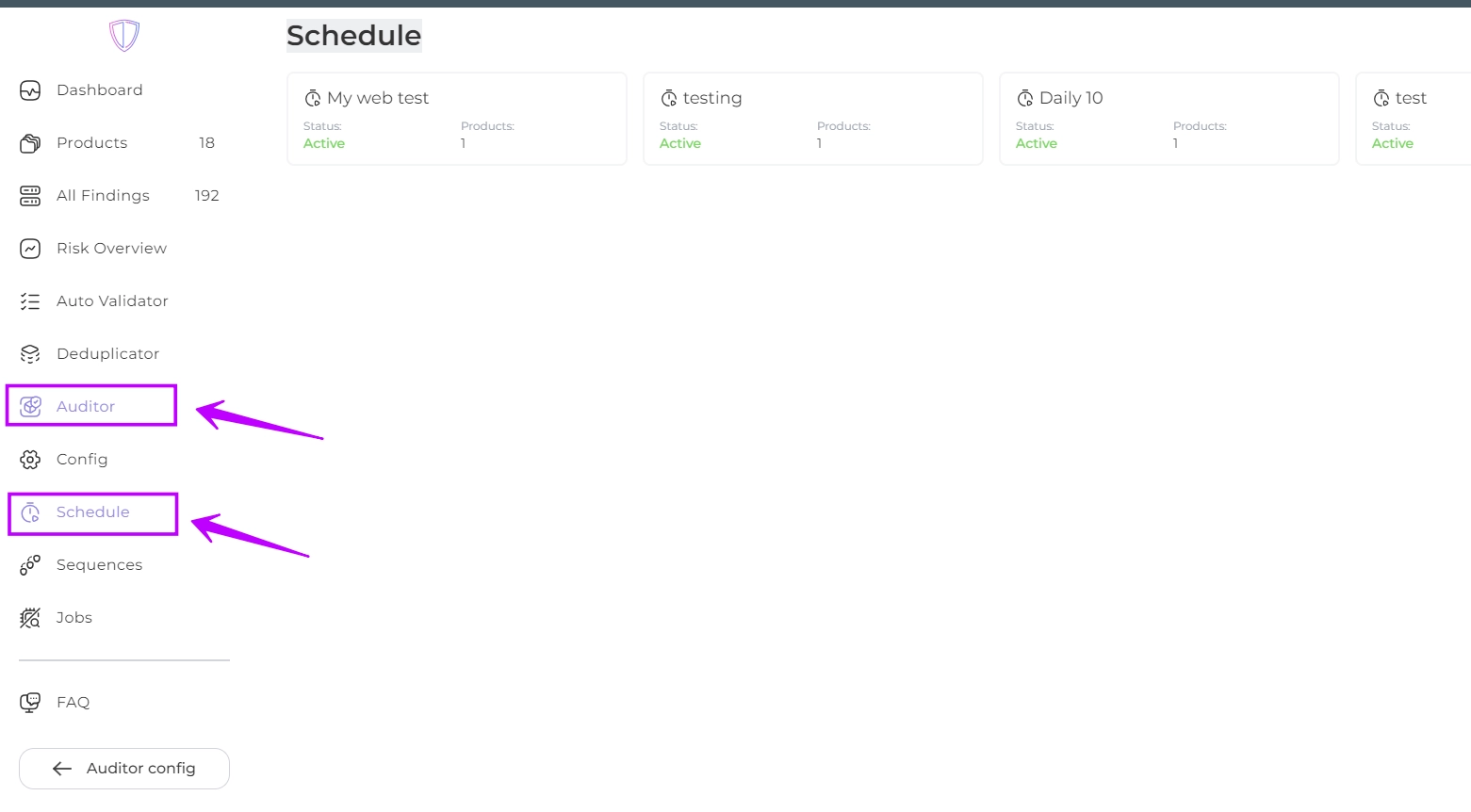
1. From the Dashboard page navigate to Auditor -> Schedule
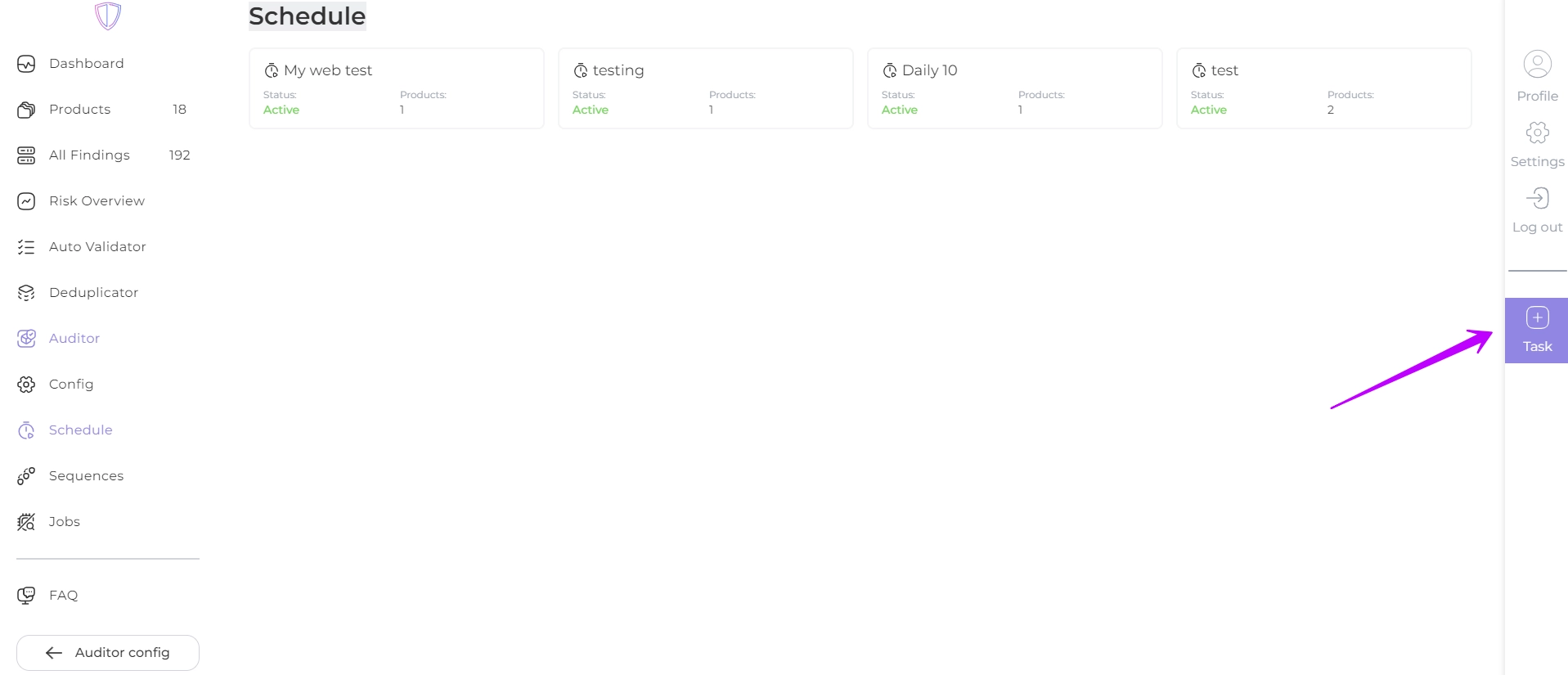
2. Click on the **Task** in the right panel.
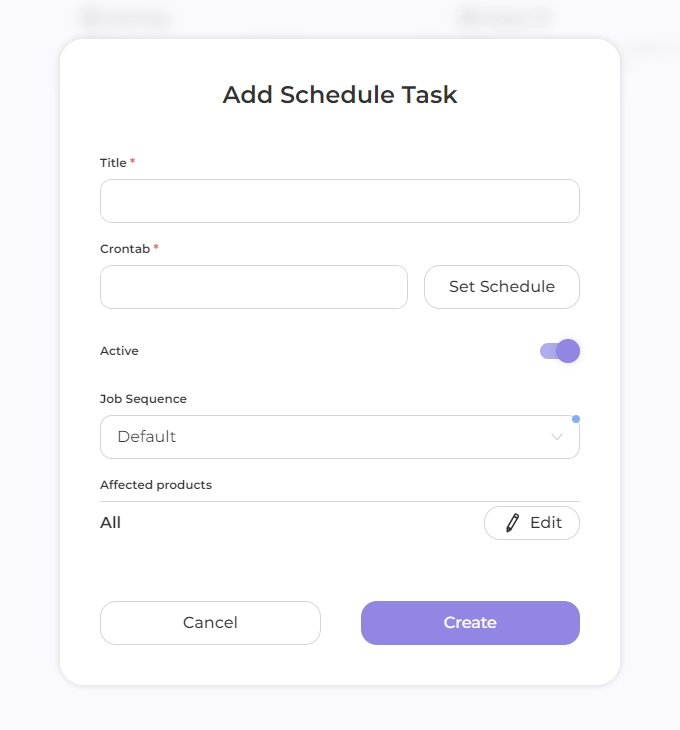
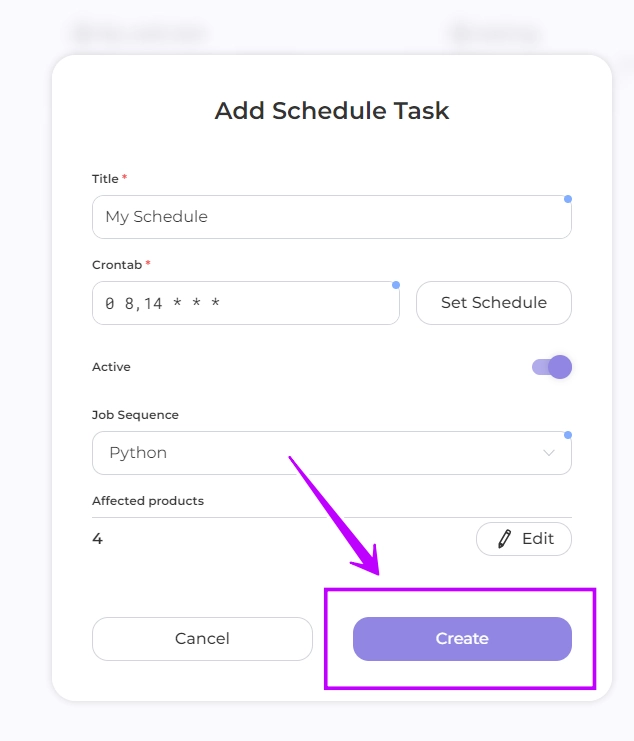
3. In the opened window, complete the following fields: **Title**, **Crontab**, **Job Sequence**, **Affected products**.\
You can deactivate the schedule any time by toggling the **Active** slider.
3.1 In the **Title** field enter the name of your schedule, e.g.:
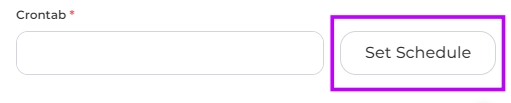
3.2 Click the _**Set Schedule**_ button in the **Crontab** field to customize the Auditor's run time.
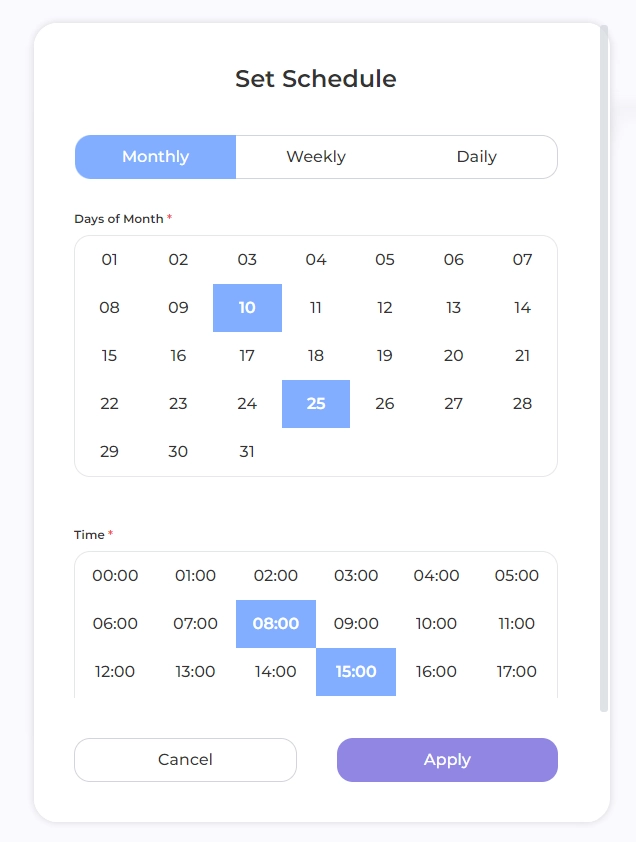
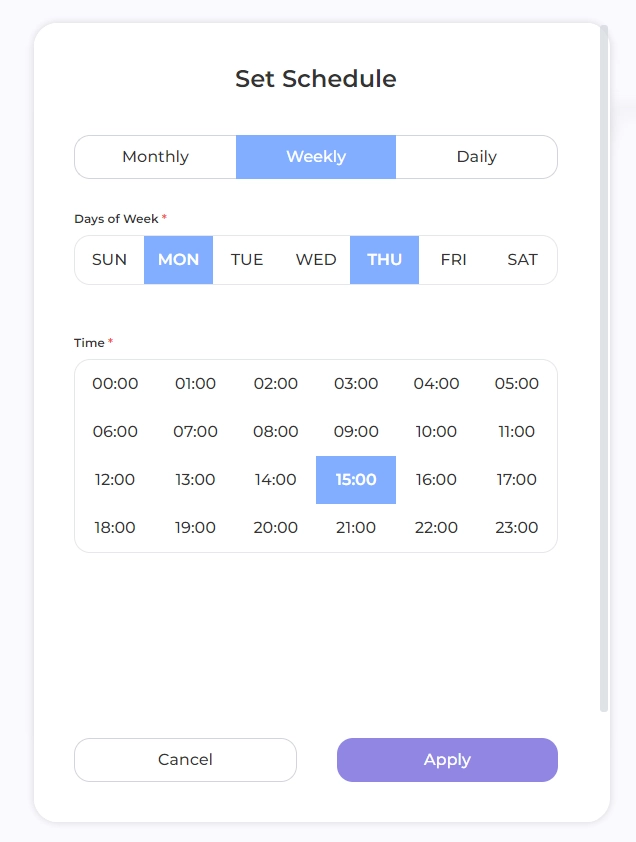
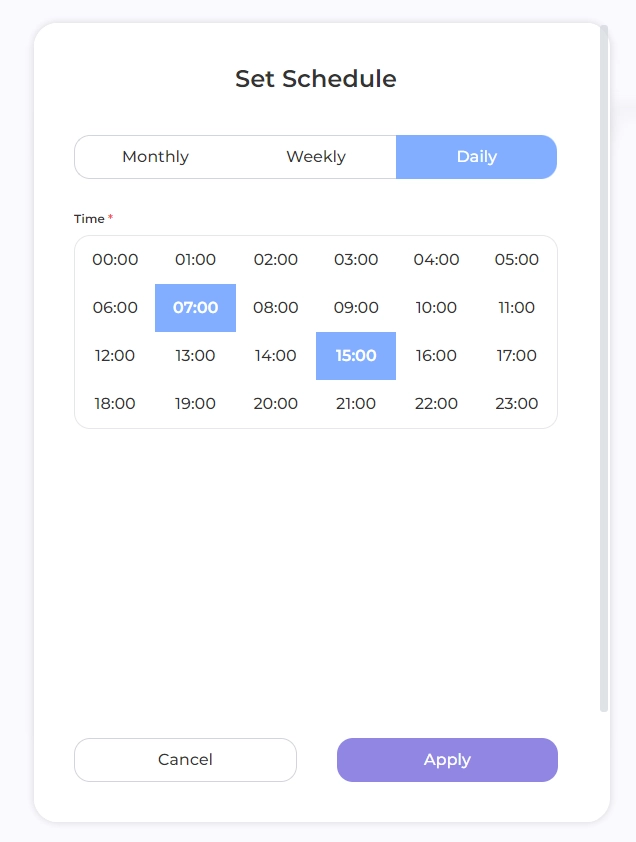
In the displayed calendar, set the Auditor's work:
* Periodicity: Monthly, Weekly or Daily
* The Date of the month or Day of the week for monthly and weekly frequency, respectively
* Time
Days and Times support multi-selection
Click **Apply** to accept the configuration
Monthly frequencyWeekly frequencyDaily frequency
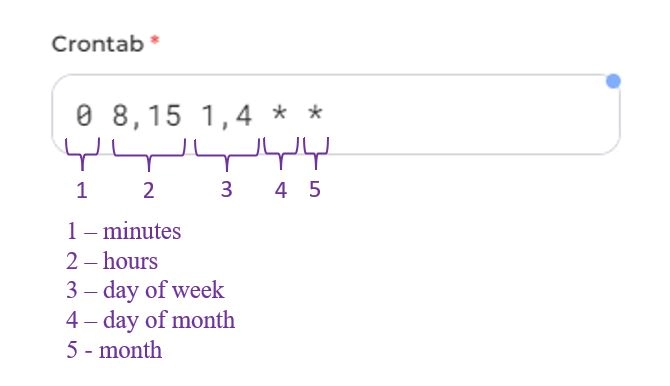
The selected time will be displayed in the field in the format \*\*\*\*\*, where
Your schedule is set up for audits every Monday and Thursday at 8:00 a.m. and 3:00 p.m.
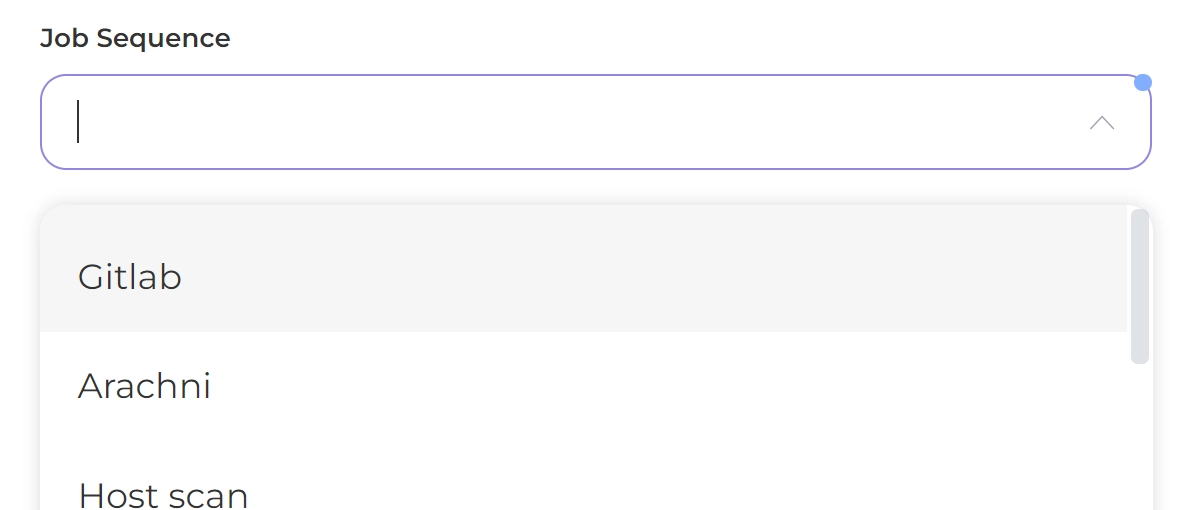
3.3 For **Job Sequence**, choose from the drop-down list.
3.4 **Affect products**:
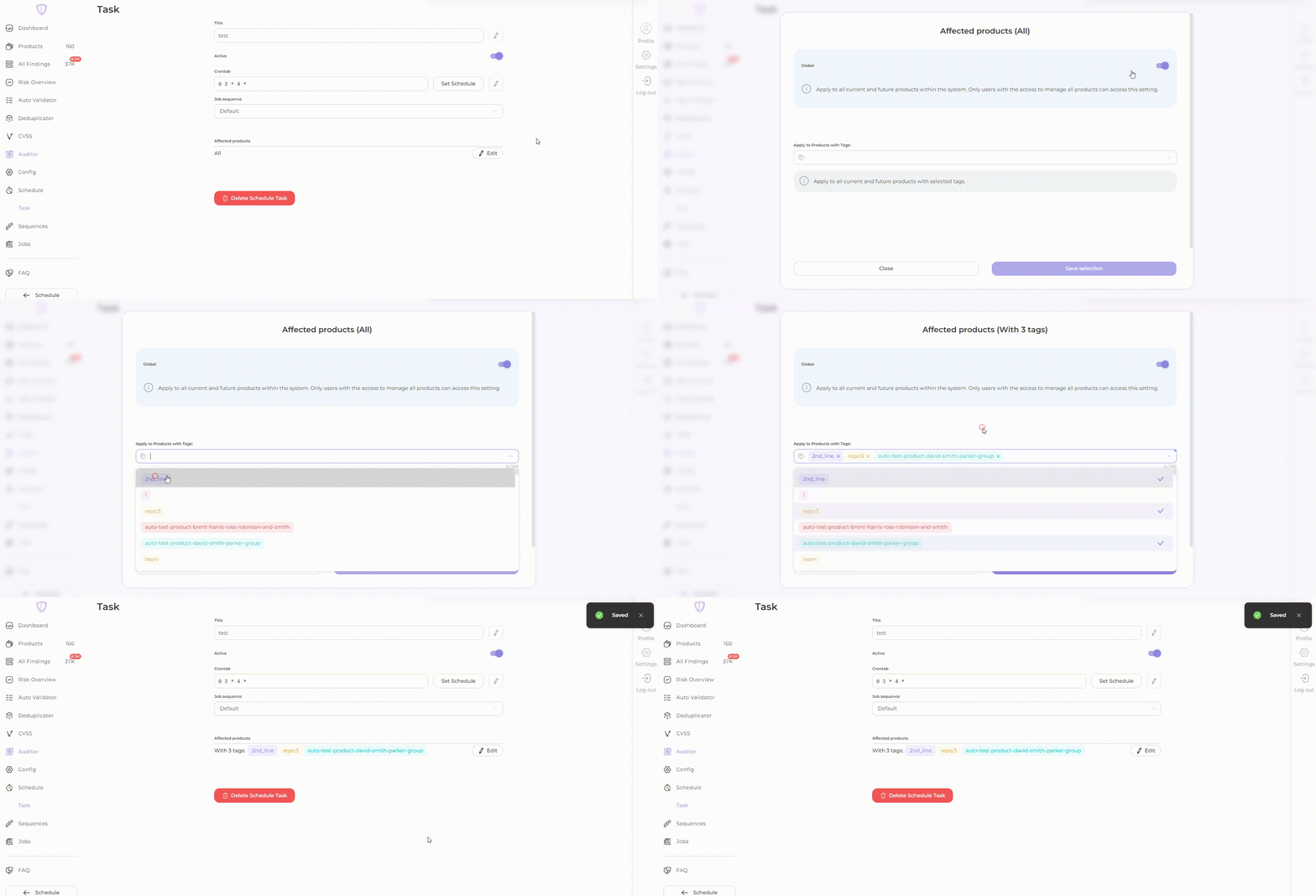
* All your products are automatically added to the schedule. You can also select product tags and all products with the selected tags will be included in the auditor's processing.
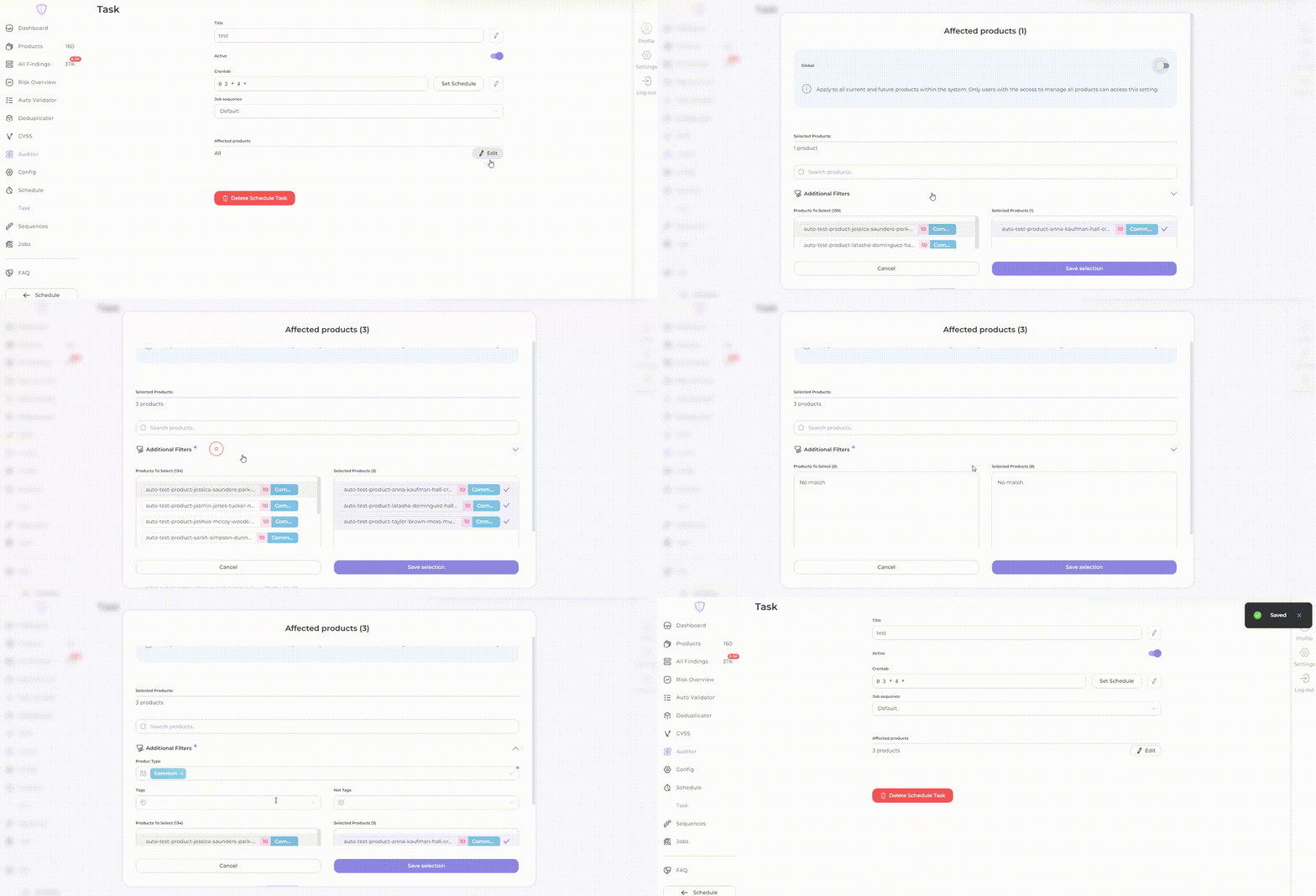
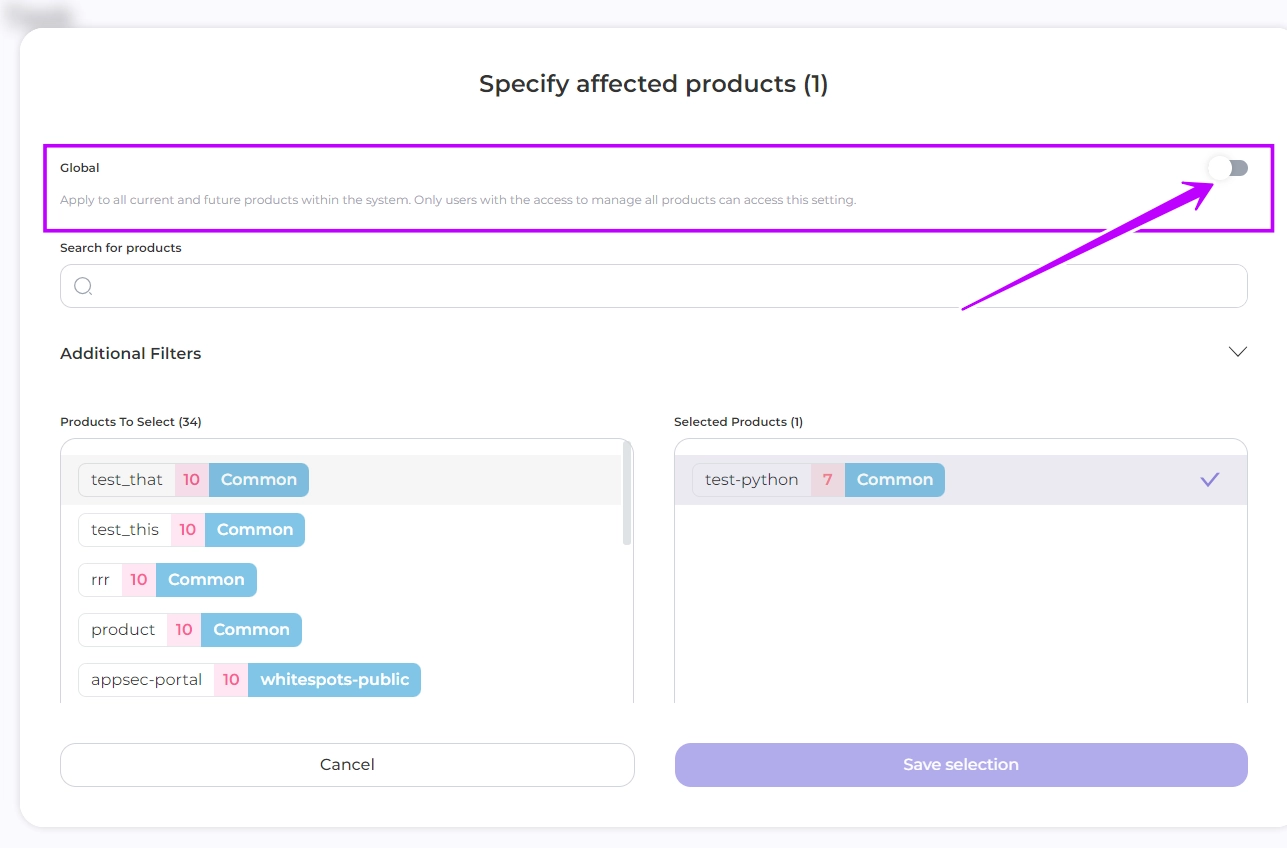
* Or select **specific products** by clicking **Edit** and choosing particular products.
4. Click **Create**
{% hint style="info" %}
The audit is run on all the assets that are set up in the selected products
{% endhint %}
If necessary, you can change the settings in the created task.\
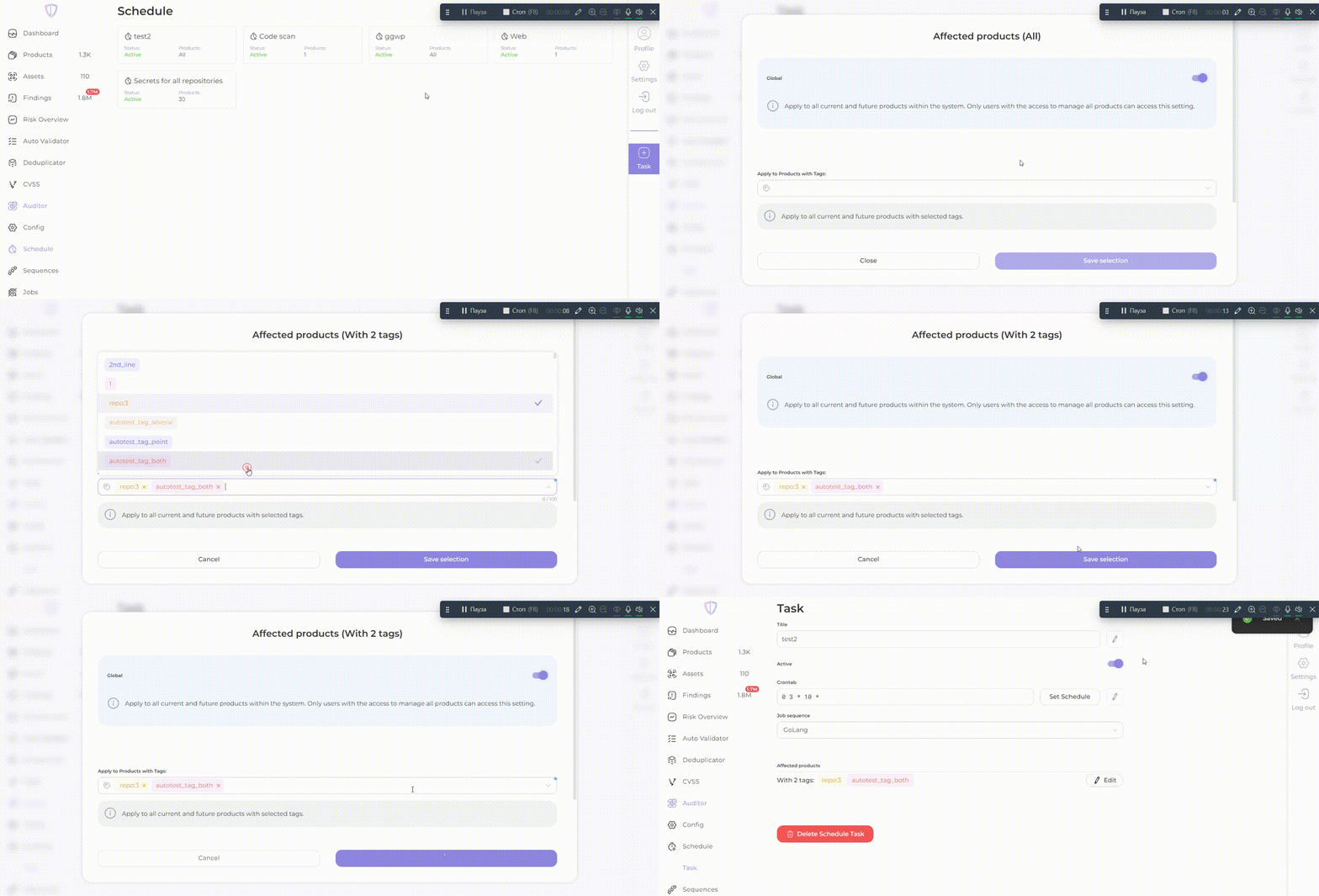
You can also include all current and future products in the schedule.
If global settings are selected in your schedule, you can specify a tag name so that the auditor only scans products with that tag.
{% hint style="warning" %}
This setting can only be made by users with a role that has access to all product types.
{% endhint %}
---
## Navigation
- Location: [Docs](https://whitespots.io/docs) > [Whitespots Wiki](https://whitespots.io/docs/whitespots-wiki) > [AppSec Portal](https://whitespots.io/docs/whitespots-wiki/appsec-portal) > [🎯 Features](https://whitespots.io/docs/whitespots-wiki/appsec-portal/features) > [🔦 Vulnerability discovery](https://whitespots.io/docs/whitespots-wiki/appsec-portal/features/vulnerability-discovery) > [🔎 Run audit](https://whitespots.io/docs/whitespots-wiki/appsec-portal/features/vulnerability-discovery/run-audit)
- Previous: [Run Audit Manually](https://whitespots.io/docs/whitespots-wiki/appsec-portal/features/vulnerability-discovery/run-audit/run-audit-manually)
- Next: [📦 Working with products](https://whitespots.io/docs/whitespots-wiki/appsec-portal/features/working-with-products)