---
title: "SSO settings"
description: "Setting Up Single Sign-On (SSO) in AppSec Portal"
url: https://whitespots.io/docs/whitespots-wiki/appsec-portal/general-portal-settings/sso-settings
slug: whitespots-wiki/appsec-portal/general-portal-settings/sso-settings
publish_date: 2025-12-02T21:40:06.000Z
last_modified: 2025-12-02T21:40:06.000Z
---
# SSO settings
# SSO settings
If you have a corporate identity provider that supports the **OIDC** (OpenID Connect) **protocol**, or if you are using an SSO provider that also works with the OIDC protocol (such as [Okta](https://whitespots.io/docs/whitespots-wiki/appsec-portal/general-portal-settings/sso-settings/okta-sso), Auth0, Google Identity Platform, [Microsoft identity platform](https://whitespots.io/docs/whitespots-wiki/appsec-portal/general-portal-settings/sso-settings/microsoft-sso), [GitLab](https://whitespots.io/docs/whitespots-wiki/appsec-portal/general-portal-settings/sso-settings/gitlab-sso), Azure AD, AWS Cognito, Duo Security, and others), you can **configure Single Sign-On (SSO)** for your AppSec Portal.
You can automatically **synchronize roles** assigned to users in the corporate identity or at your SSO provider [by configuring the appropriate mapping](https://whitespots.io/docs/whitespots-wiki/appsec-portal/general-portal-settings/sso-settings#role-mapping).
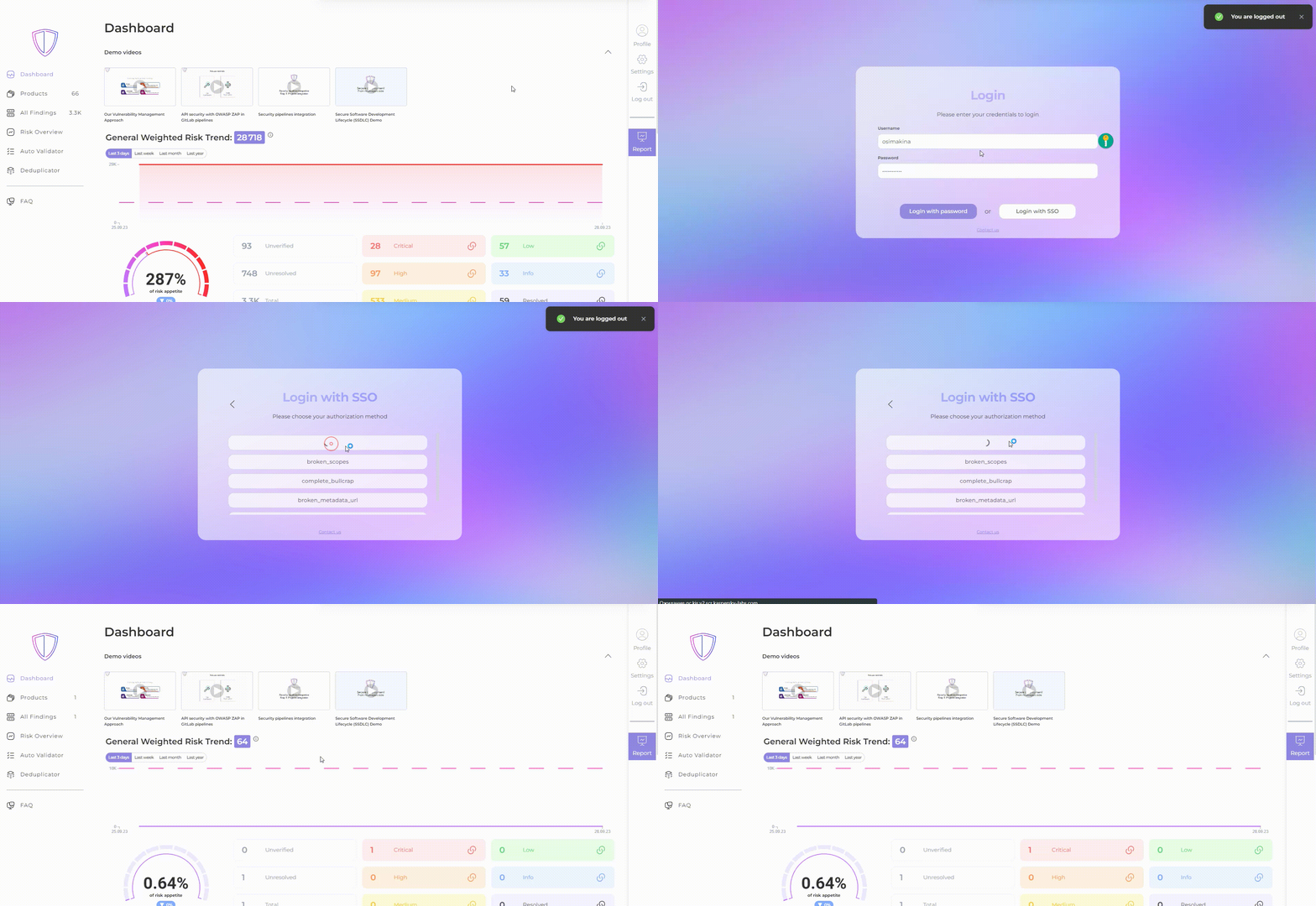
Authentication through SSO allows users to log in to the portal without the need to remember separate credentials.
### The setup process will include the following steps:
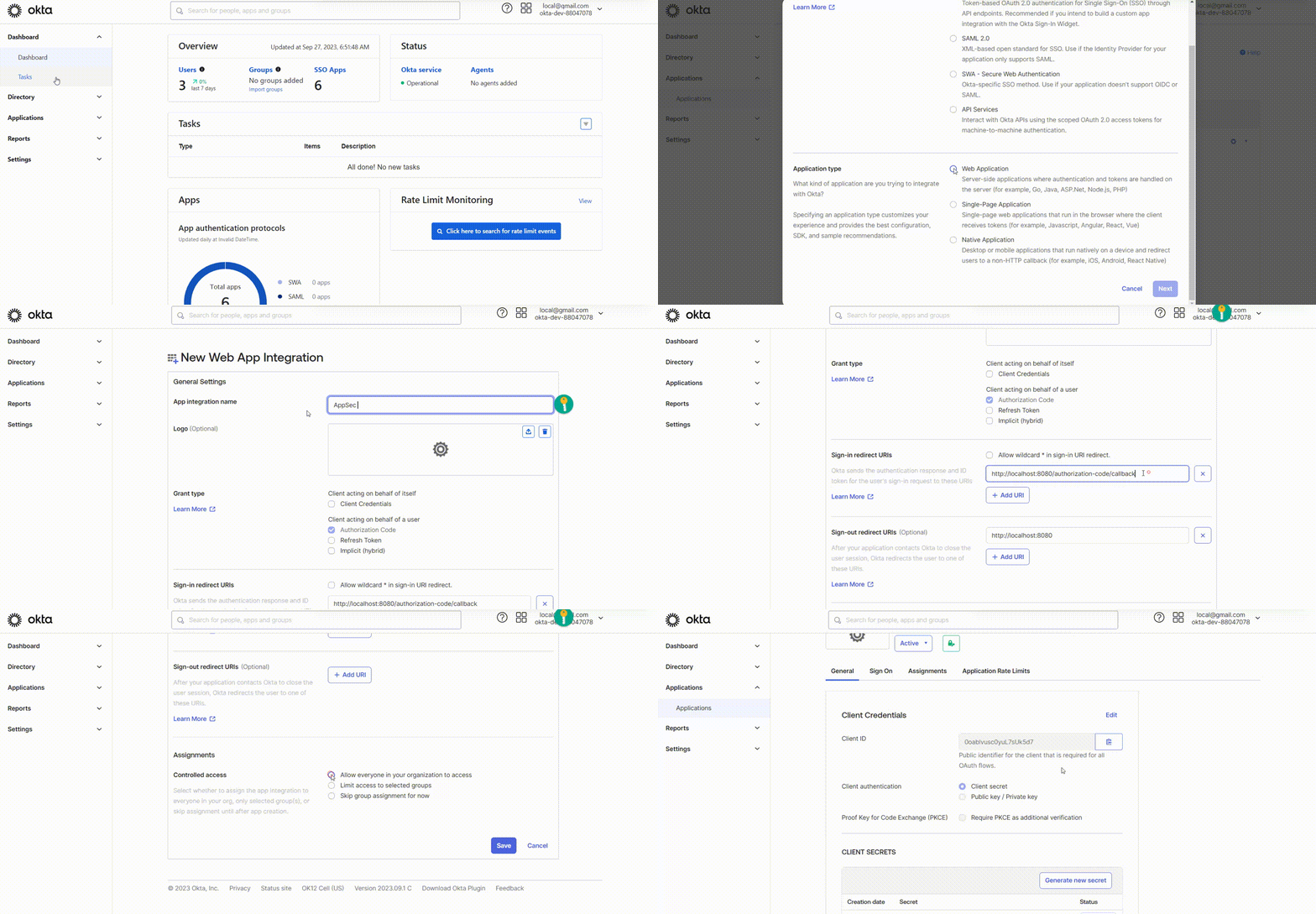
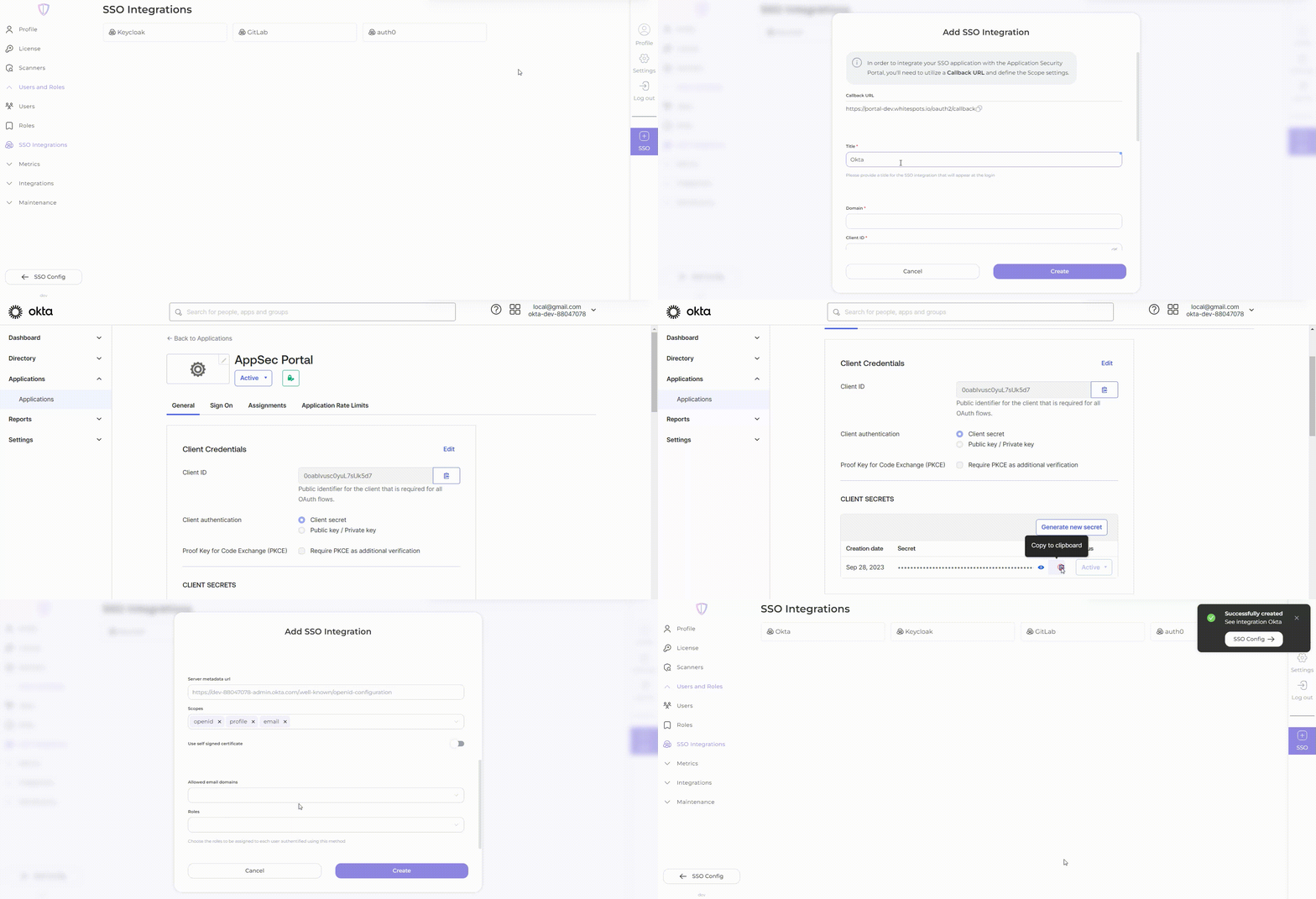
1. Add the "AppSec Portal" application as a client in the settings of your SSO provider.
Example for Okta
2. Navigate to the administrative panel of AppSec Portal: \
&#xNAN;_**Settings -> Users and Roles -> SSO integrations**_
3. On the right panel, select Add SSO (+ SSO)
4. In the SSO settings section, enter the parameters:\
**Title**: Provide a title for the SSO integration. This title will be displayed during the login process.\
**Domain**: Enter the domain of your SSO provider. \
**Client ID**: Enter the client ID for your SSO connection settings obtained from your provider. **Client Secret**: Enter the client secret for your SSO connection settings obtained from your provider. \
**Server Metadata URL**: If your provider's metadata URL **is not** unique, you can leave this field with the default value. \
**Scopes**: By default, the scope includes the OpenID, email, and profile parameters. You can remove specific parameters if necessary. \
**Use Self-Signed Certificate**: Activate this option if it's necessary for your setup. \
**Allowed Email Domains**: Enter the allowed email domains as a comma-separated list if necessary. \
**Roles**: Choose roles from the dropdown list to be assigned to each user authenticated using this method if necessary.
5. Click "Create"
6. Ensure that the authentication and authorization process is functioning correctly, and that users can securely and conveniently access the portal.
### Role Mapping
If roles are configured for users in your SSO provider, a specific role will be assigned to the user in the portal based on the configured mapping.
If there are no roles configured in the provider, or if no mapping has been set in the portal, the user is automatically assigned the roles you specified in step 4 during SSO setup.
{% hint style="success" %}
The mapping check occurs each time a user logs in. \
In other words, if a role is added or removed for a user on the provider's side, their roles in the portal will be adjusted according to the mapping and newly received information from the provider upon each login.
{% endhint %}
Follow the steps below to configure the mapping:
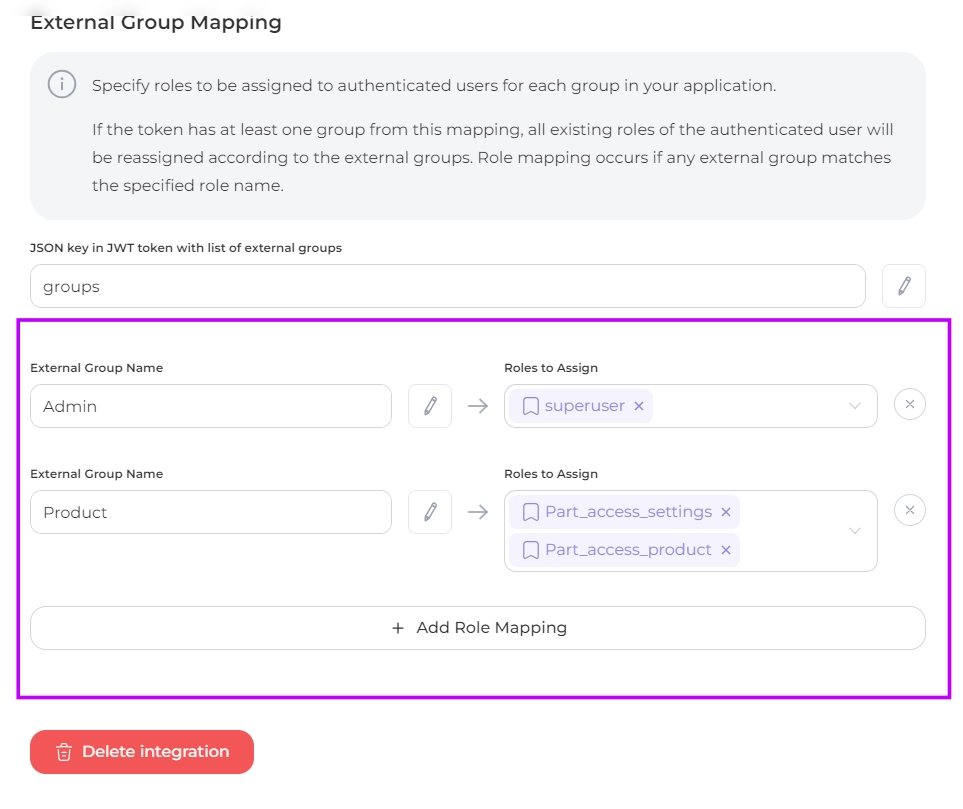
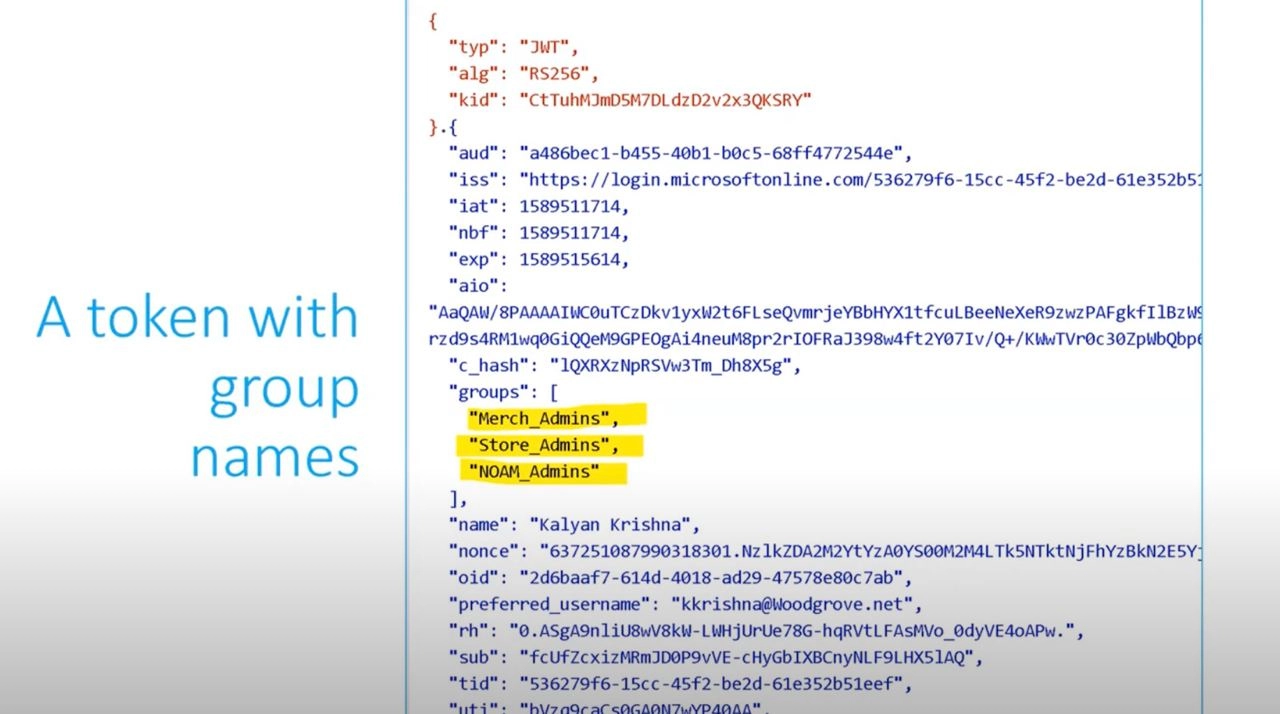
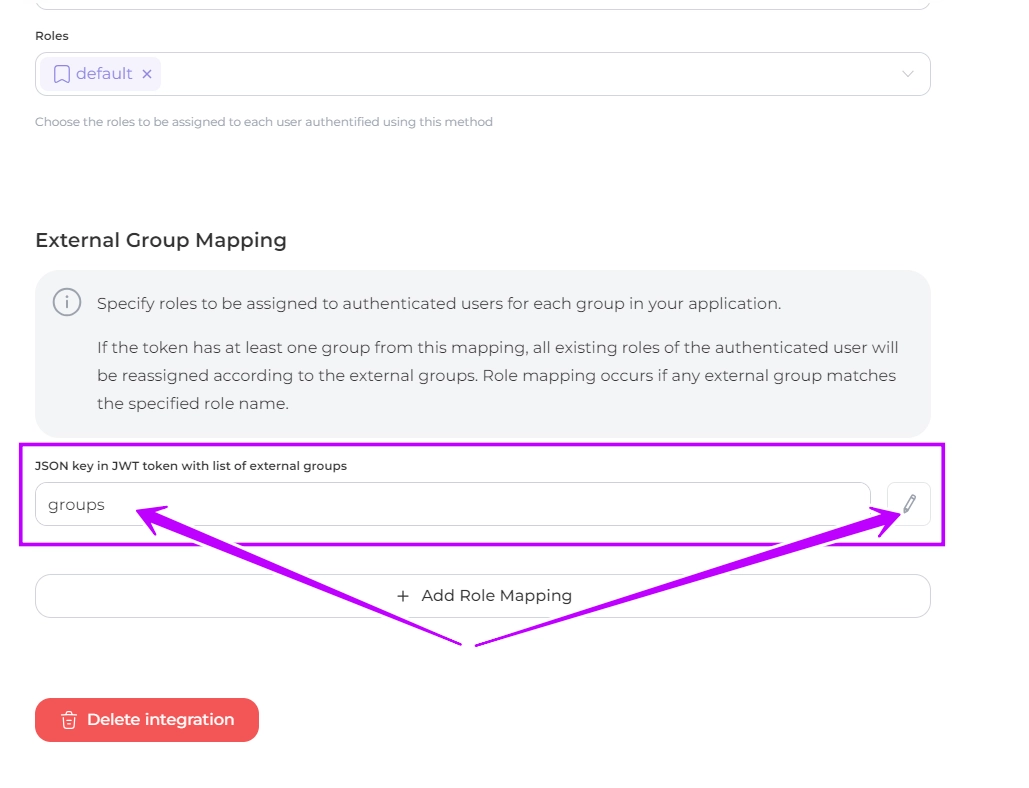
1. Fill the "**JSON key in JWT token with list of external groups"** field with the name of the key by which the portal is able to get the list of external groups. It could be **groups** or **roles**, depending on which system is used
SSO token example
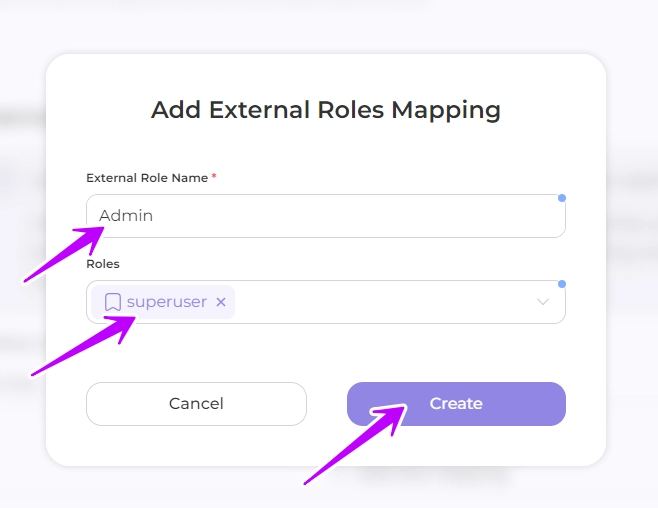
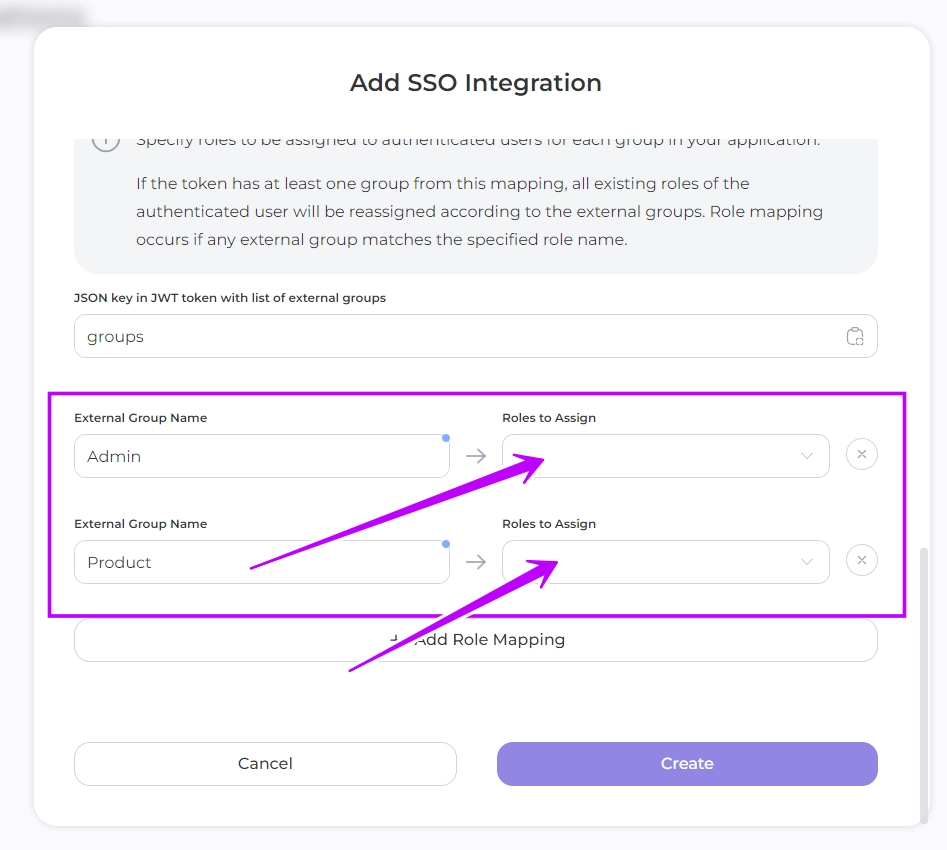
2. Click the button and match the role name from your provider and the Portal:
3. Create a mapping for all external roles
If you have filled in the **JSON key in JWT token with list of external groups** field but **haven't** configured the **mapping,** upon the first login via Single Sign-On (SSO), the portal will display all roles received from your provider. You can map them later.
---
## Navigation
- Location: [Docs](https://whitespots.io/docs) > [Whitespots Wiki](https://whitespots.io/docs/whitespots-wiki) > [AppSec Portal](https://whitespots.io/docs/whitespots-wiki/appsec-portal) > [🛠️ General Portal settings](https://whitespots.io/docs/whitespots-wiki/appsec-portal/general-portal-settings)
- Previous: [Group findings by](https://whitespots.io/docs/whitespots-wiki/appsec-portal/general-portal-settings/scanner-settings/group-findings-by)
- Next: [GitLab SSO](https://whitespots.io/docs/whitespots-wiki/appsec-portal/general-portal-settings/sso-settings/gitlab-sso)
### Pages in this section
- [GitLab SSO](https://whitespots.io/docs/whitespots-wiki/appsec-portal/general-portal-settings/sso-settings/gitlab-sso)
- [Microsoft SSO](https://whitespots.io/docs/whitespots-wiki/appsec-portal/general-portal-settings/sso-settings/microsoft-sso)
- [Okta SSO](https://whitespots.io/docs/whitespots-wiki/appsec-portal/general-portal-settings/sso-settings/okta-sso)
 and match the role name from your provider and the Portal: