---
title: "Direct use of Auditor"
description: "Direct use of Auditor If you are using Auditor without the AppSec Portal, directly: Preconfigure Auditor if you are using your own images for job…"
url: https://whitespots.io/docs/whitespots-wiki/auditor/features/run-audit/direct-use-of-auditor
slug: whitespots-wiki/auditor/features/run-audit/direct-use-of-auditor
publish_date: 2025-12-03T22:20:02.000Z
last_modified: 2025-12-03T22:20:02.000Z
---
# Direct use of Auditor
# Direct use of Auditor
If you are using Auditor **without** the AppSec Portal, **directly**:
1. **Preconfigure Auditor**
if you are using your own images for job (scanners), [**preconfigure**](https://whitespots.io/docs/whitespots-wiki/auditor/features/settings/direct-use-of-the-auditor/docker-credentials) Auditor
2. **Create pipeline**
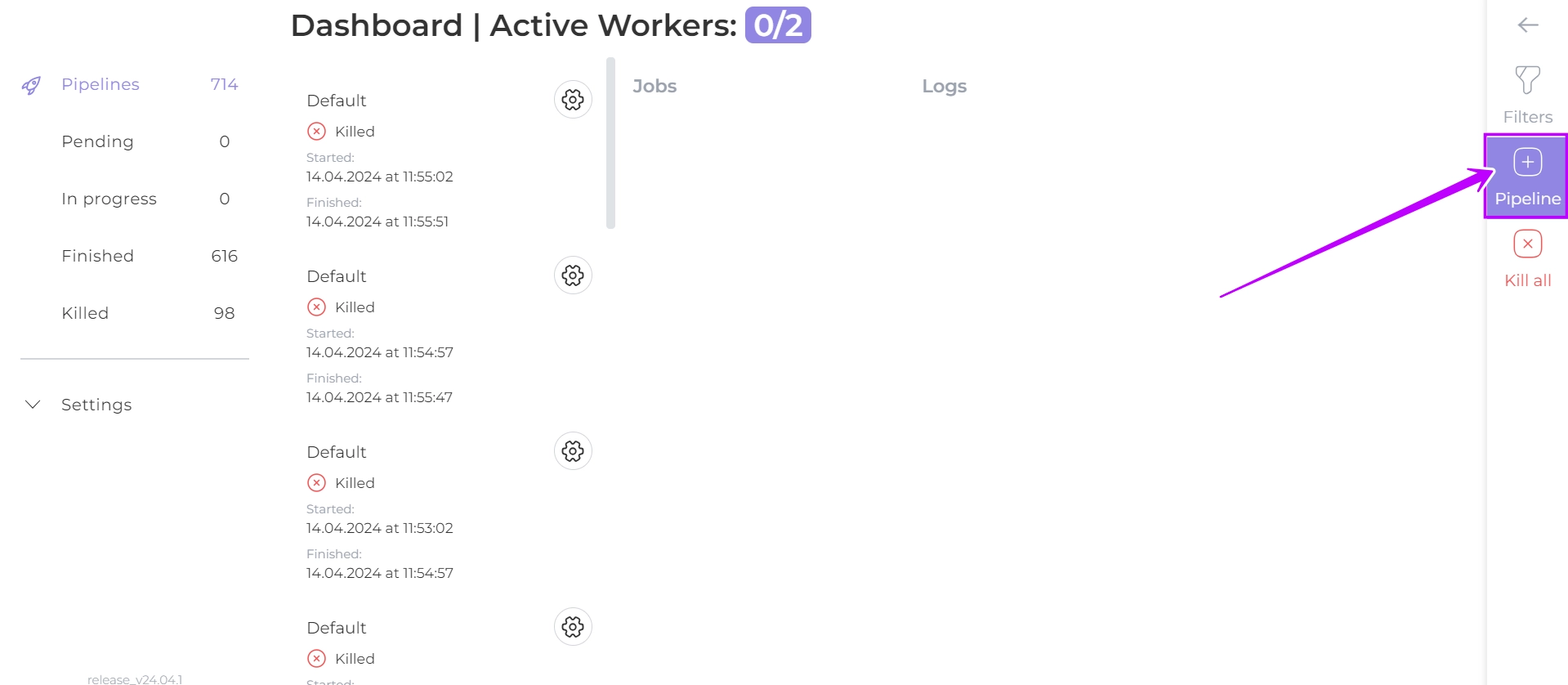
On the dashboard page click on button
3. **Add Jobs**
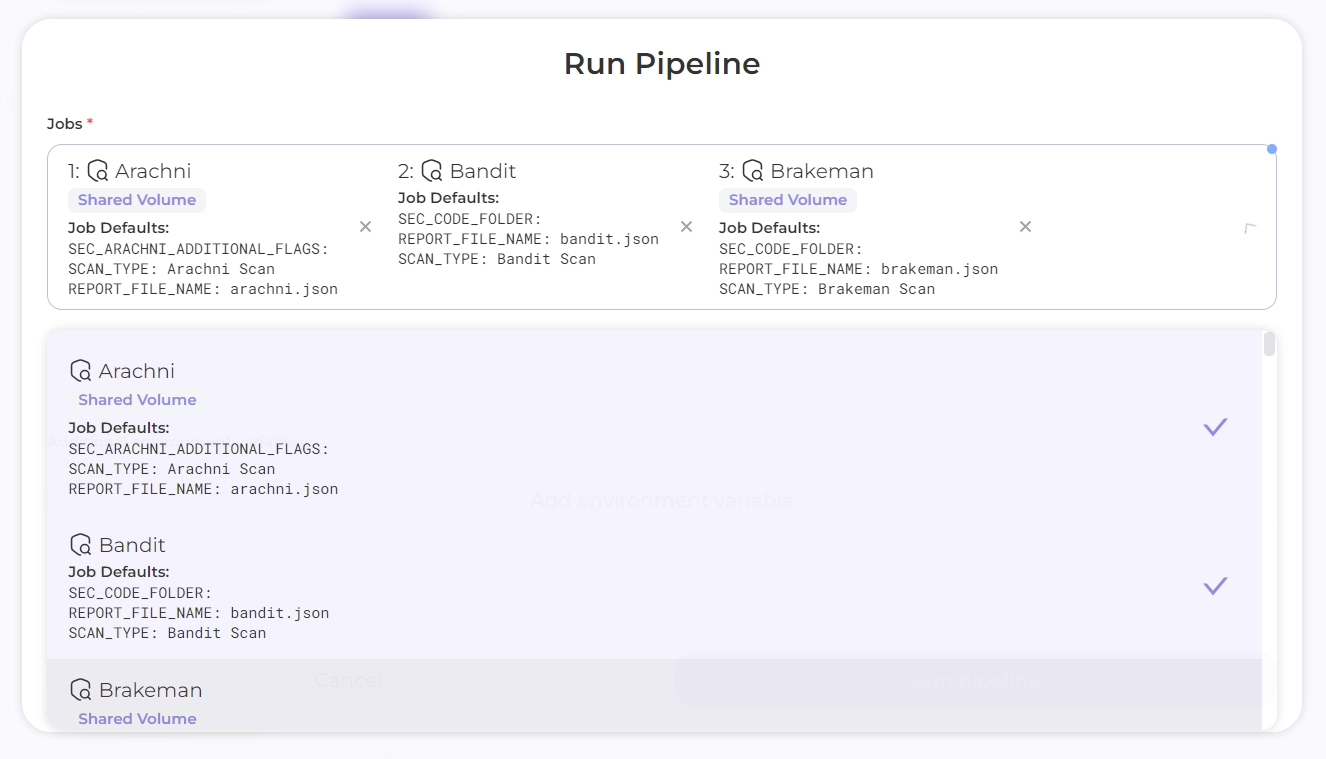
Click on the **Jobs** field and create a sequence of jobs (scanners) by selecting the required jobs from the drop-down list
Scanning will be performed sequentially based on the selected set of jobs
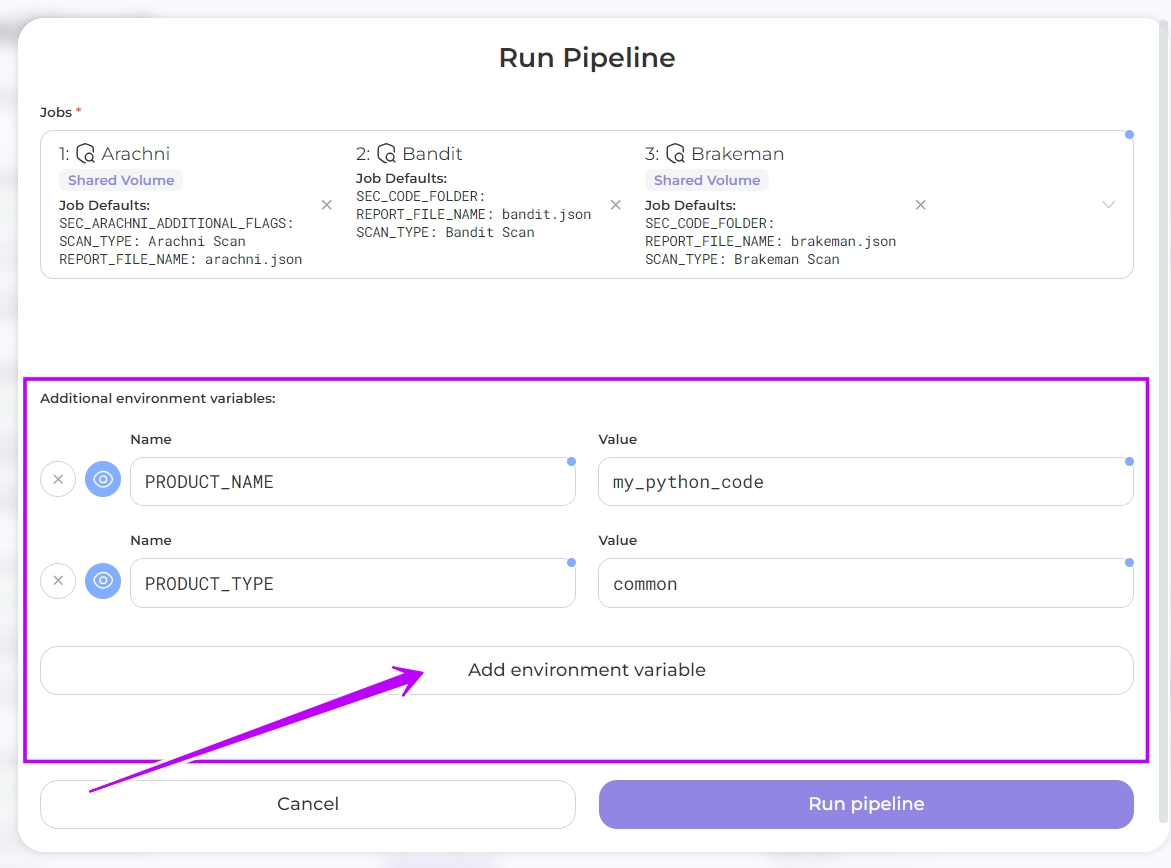
4. **Add environment variables**
The variables **require** you to specify information about your product and its location
| Name | Description |
| ---------------------------------------------------- | ---------------------------------------------------------------------------------------------------------------------------------- |
| `PRODUCT_NAME` | name of your product |
| `PORTAL_IMPORT_URL` | address where reports will be sent (delivery point) |
| `PORTAL_TOKEN` | credentials for delvery point |
| `REPOSITORY` | URL of the cloned repository to be scanned, where the **code** will be checked in |
| `DOCKER_IMAGE` | reference to a list of your docker **images**, e.g. _registry.gitlab.com/whitespots-public/appsec-portal/back/appsecportal:latest_ |
| `DOMAIN` | domain of your **web** product |
| `HOST` | IP address of your **web** product |
Optionally you can specify other variables that you need to set
5. **Run pipline**
Click Run pipeline
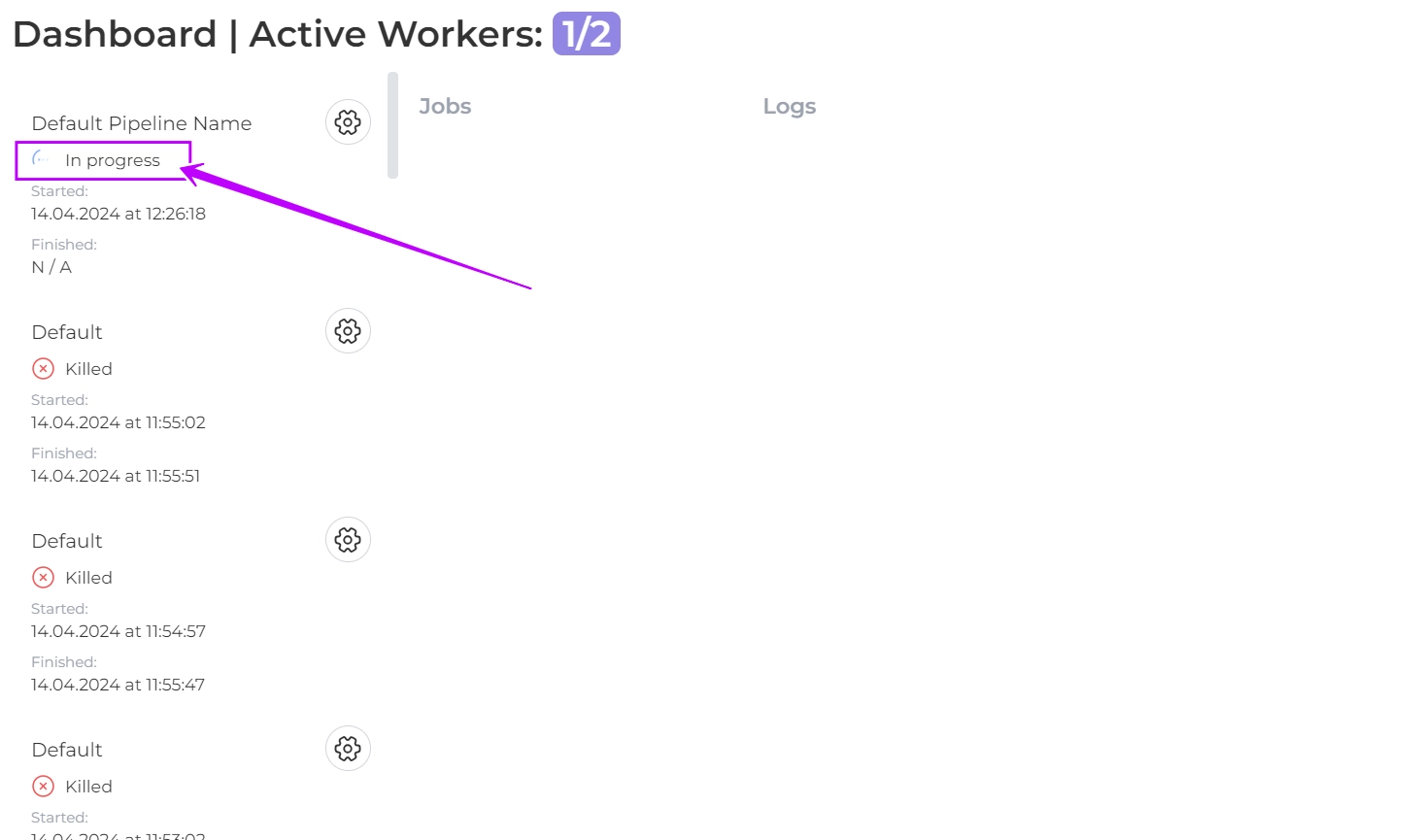
The scanning of your product will commence.\
After all the jobs in your pipeline have finished their work, the status of the Pipeline will change from **`In progress`** to **`Finished`**
6. **Get Results**
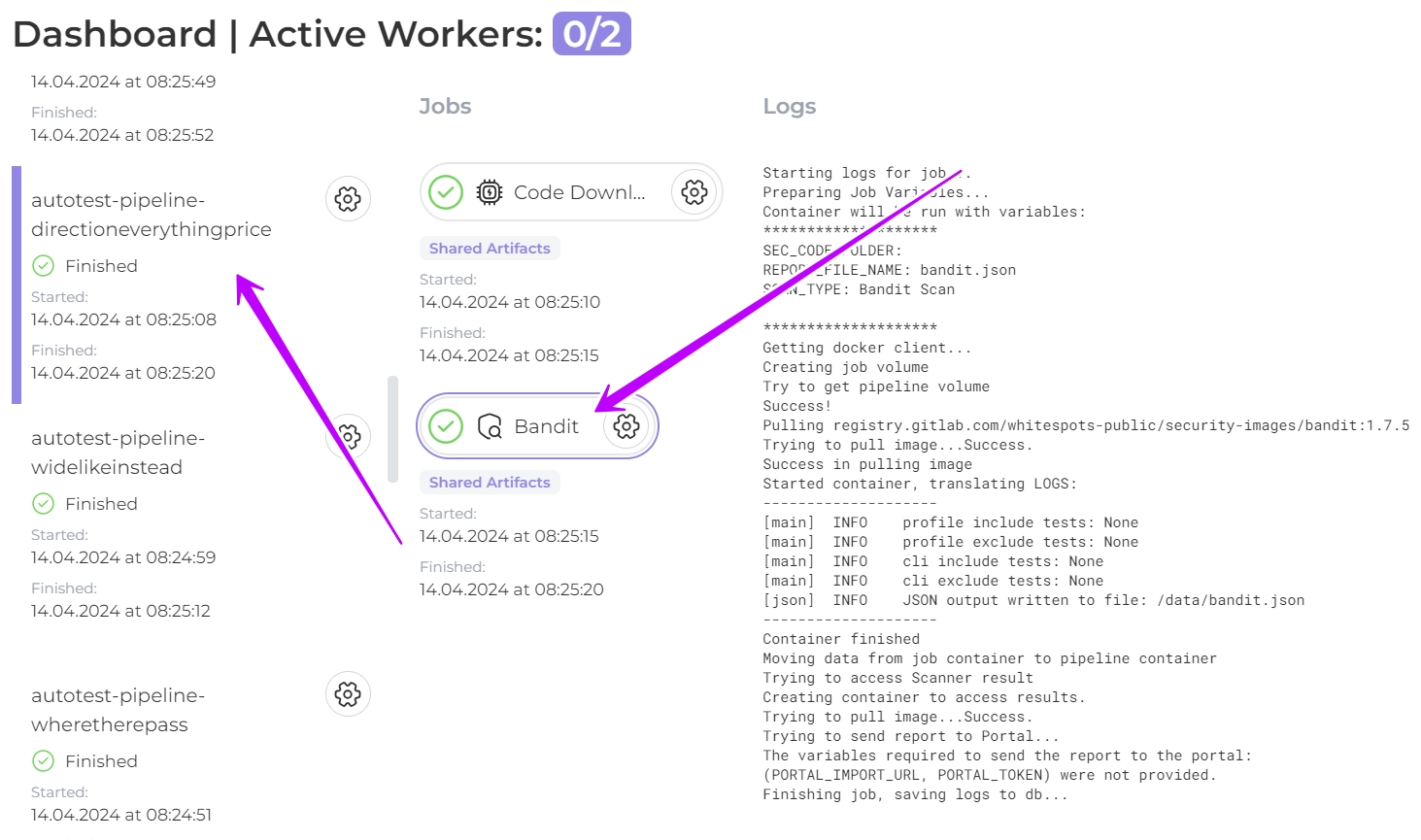
At the location specified by the environment variable (PORTAL\_URL), retrieve reports from each scanner in your pipeline
Clicking on a pipeline provides information about the Jobs in it, as well as Logs for each of them
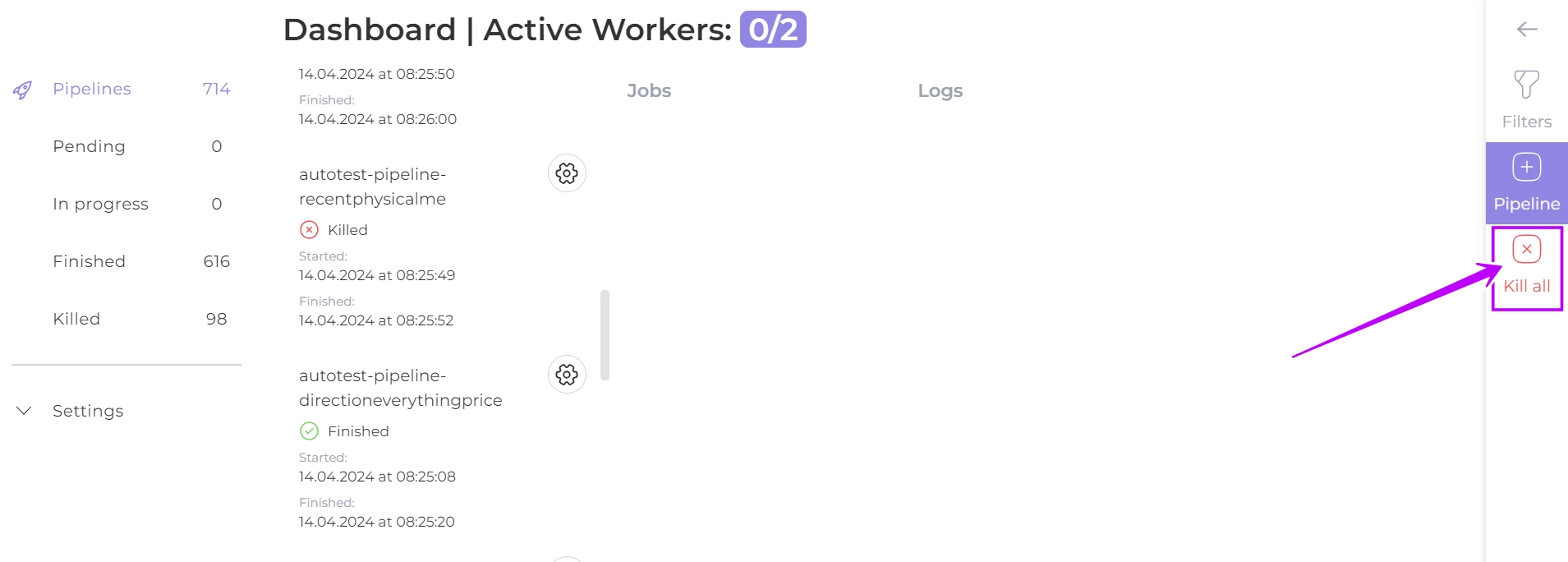
You can bulk delete all pipelines by clicking on the button
{% hint style="success" %}
When scanning a code with Auditor, if the code is not loaded by the technical scanner, the pipelines are automatically killed.
{% endhint %}
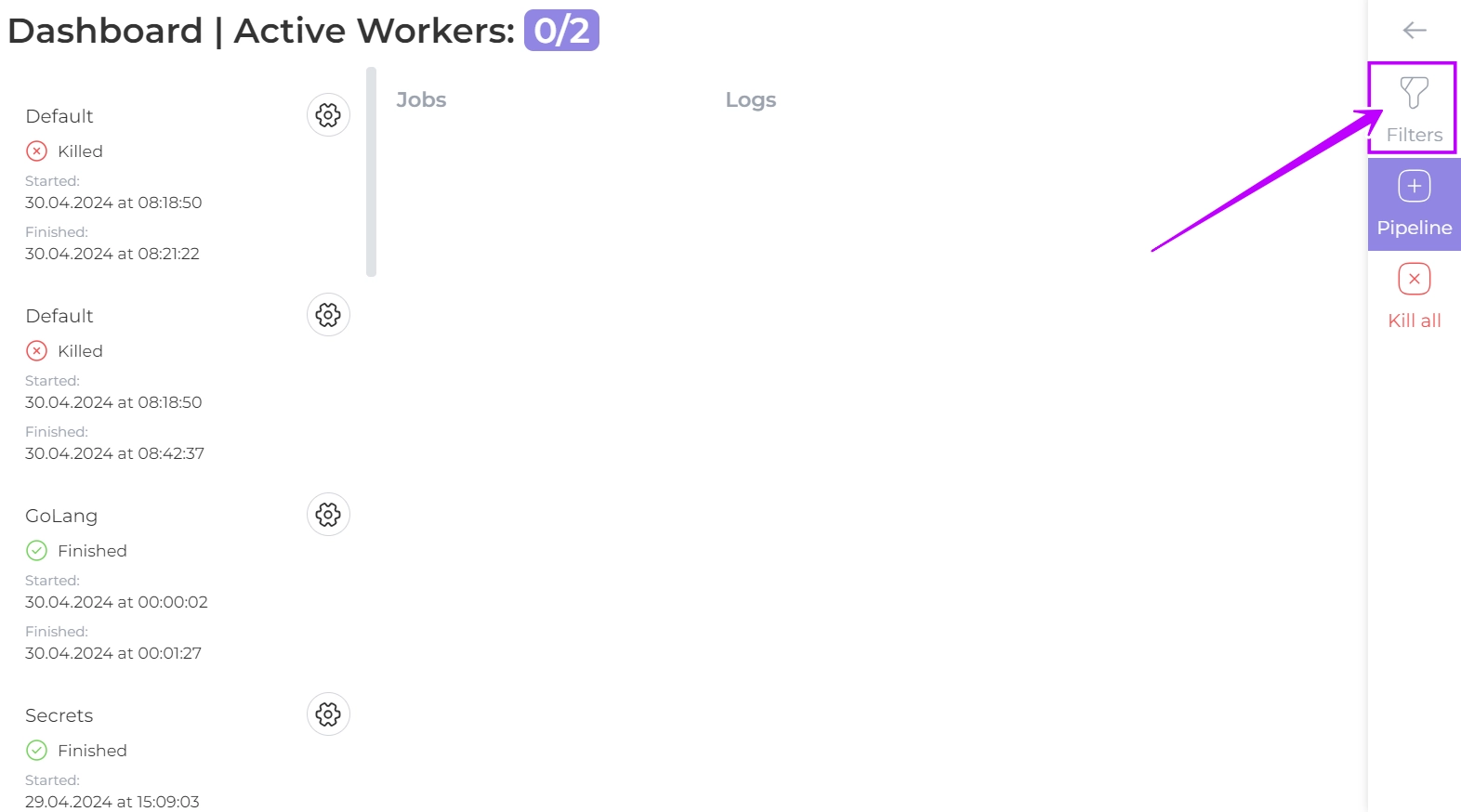
You can also filter the available pipelines by clicking on the filter button in the right panel. \
You can filter your results by Job name and/or status
---
## Navigation
- Location: [Docs](https://whitespots.io/docs) > [Whitespots Wiki](https://whitespots.io/docs/whitespots-wiki) > [Auditor](https://whitespots.io/docs/whitespots-wiki/auditor) > [🎯 Features](https://whitespots.io/docs/whitespots-wiki/auditor/features) > [🚀 Run Audit](https://whitespots.io/docs/whitespots-wiki/auditor/features/run-audit)
- Previous: [AppSec Portal cooperation](https://whitespots.io/docs/whitespots-wiki/auditor/features/run-audit/appsec-portal-cooperation)
- Next: [⚙️ Settings](https://whitespots.io/docs/whitespots-wiki/auditor/features/settings)
 button