A finding
What a finding shows, what its triage statuses mean and how to change them.
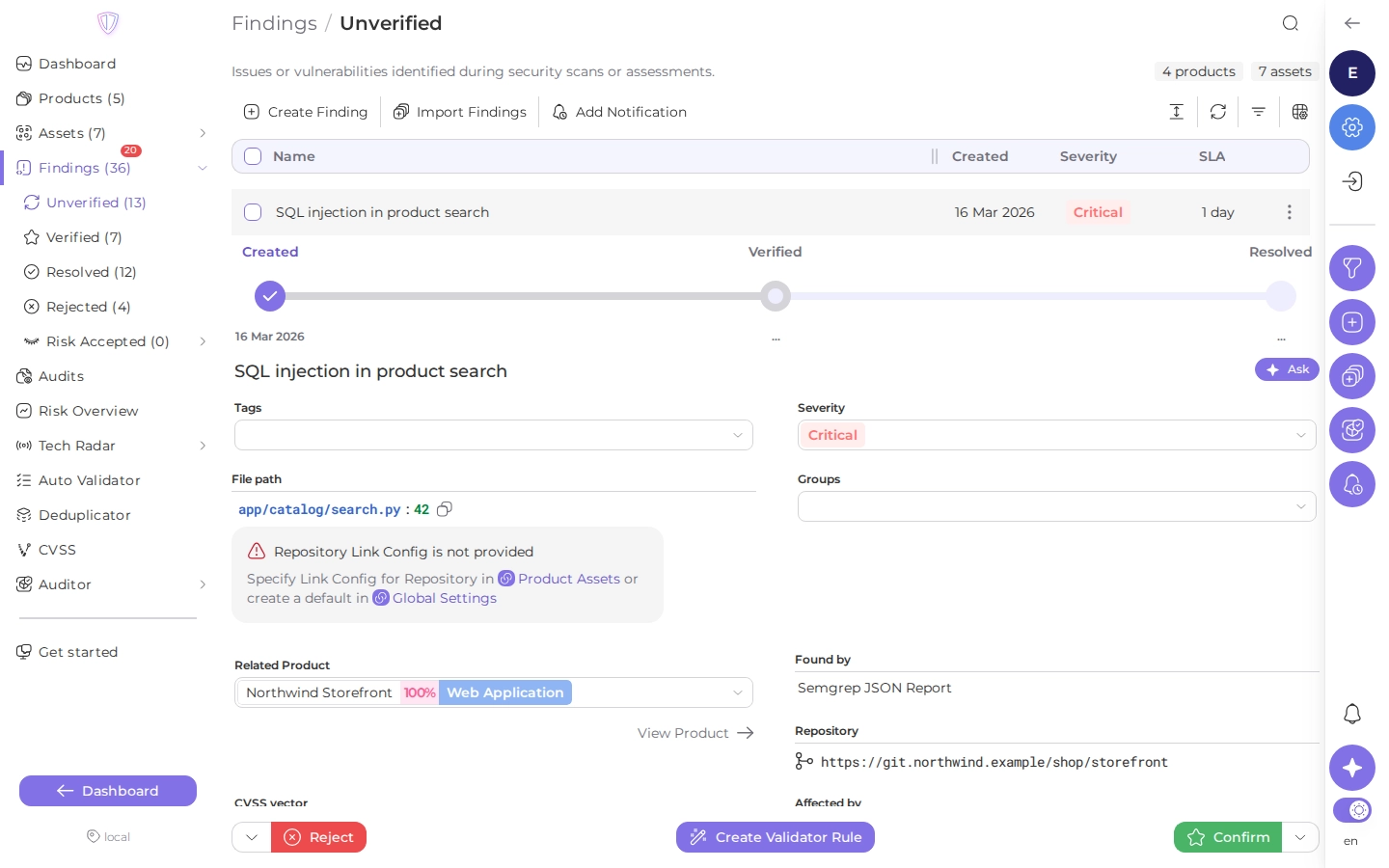
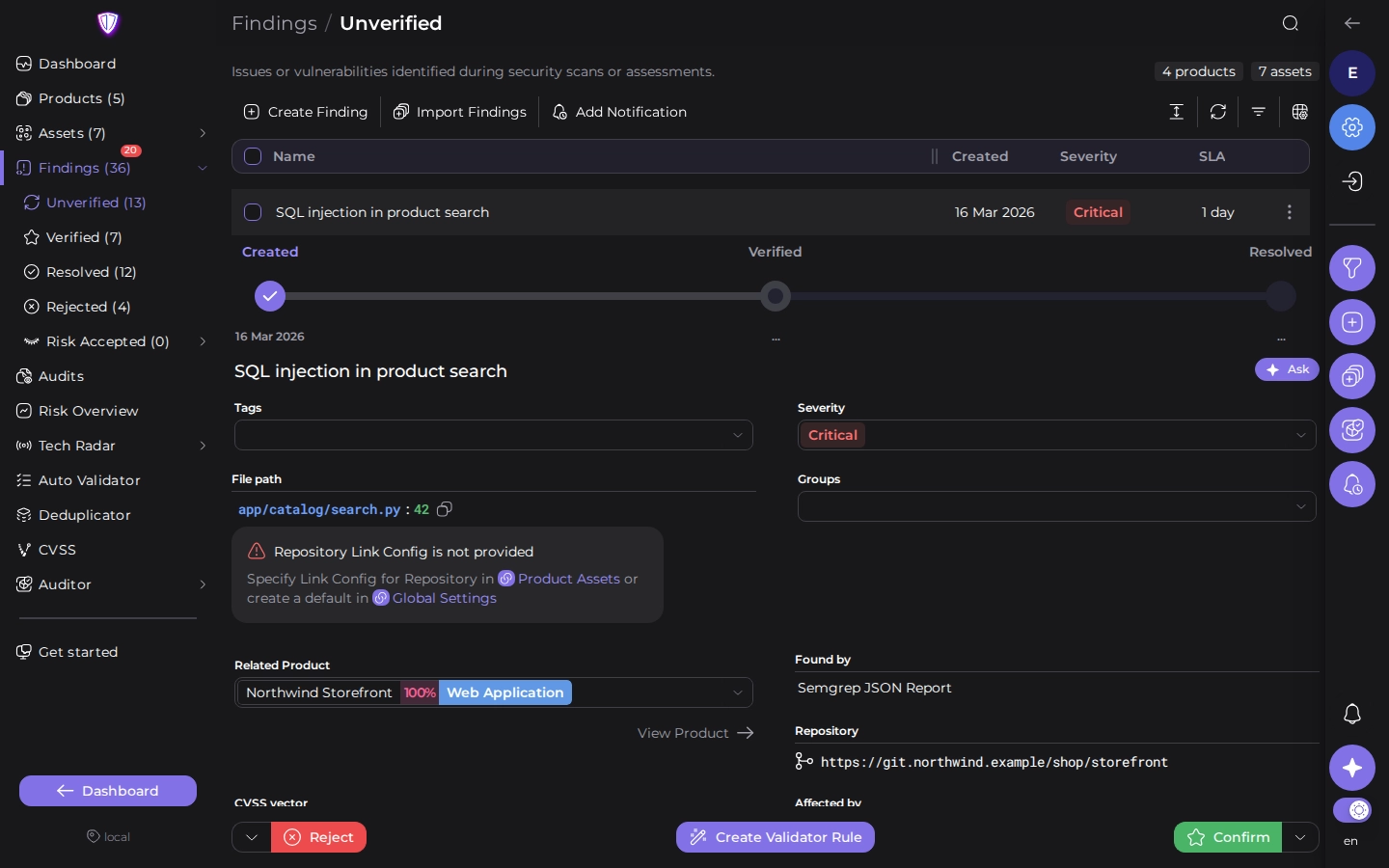
Click a finding in any list to expand it. The triage buttons stay at the bottom while you scroll.
What a finding shows
- Progress: when the finding was created, verified, assigned and resolved.
- Name, tags, severity and groups. Click a value to change it for this finding only.
- Where it is: the product, the asset, and depending on the scanner the file path, dependency, vulnerable URL or Docker image tag. View Product opens the product.
- SLA days remaining before the finding misses its deadline (see SLA).
- CVSS vector, CWE and Affected by: which rules, audits and scanners changed the finding, for example “Verified by” an Auto Validator rule.
- Description, mitigations and attachments from the scanner.
- Tasks in a task tracker created for the finding or attached to it.
- Comments. New comments are posted to the finding’s tasks too.
Ask next to the name opens the assistant with the finding attached, to explain how to fix it (see LLM).
Triage statuses
| Status | Meaning |
|---|---|
| Unverified | New. Nobody has checked it yet. |
| Verified | Confirmed as a real vulnerability that needs fixing. |
| Assigned | Verified, and someone is assigned to its task in the task tracker. |
| Resolved | Fixed. A scanner resolves it when a new scan no longer reports it. |
| Rejected | Not a real vulnerability (a false positive), or not relevant. |
| Temporarily Risk Accepted | Not fixed, accepted for a number of days. When they end, the finding is verified again. |
| Permanently Risk Accepted | Not fixed, and accepted with no end date. |
Change the status
The two buttons at the bottom are the usual next steps from the current status. The arrow next to each button lists the other statuses.
| Current status | Left button | Right button |
|---|---|---|
| Unverified | Reject | Confirm (to Verified) |
| Verified, Assigned | Reject | Resolve |
| Resolved | Reopen (to Verified) | |
| Rejected | Revert Reject (to Unverified) | |
| Temporarily Risk Accepted | Permanently Accept | Reopen (to Verified) |
| Permanently Risk Accepted | Temporarily Accept | Reopen (to Verified) |
To accept a risk, choose Accept risk in the arrow menu. Enter for how many days to accept it, or choose or permanently accept this risk.
Assigned isn’t in the menu. A verified finding becomes Assigned when someone is assigned to its task in the task tracker, and goes back to Verified when the task is unassigned (see Task trackers).
Automate the same decision
When you verify or reject the same kind of finding again and again, Create Validator Rule turns this finding into an Auto Validator rule that makes the decision for the next ones. Rules need a paid license.