Custom Reports
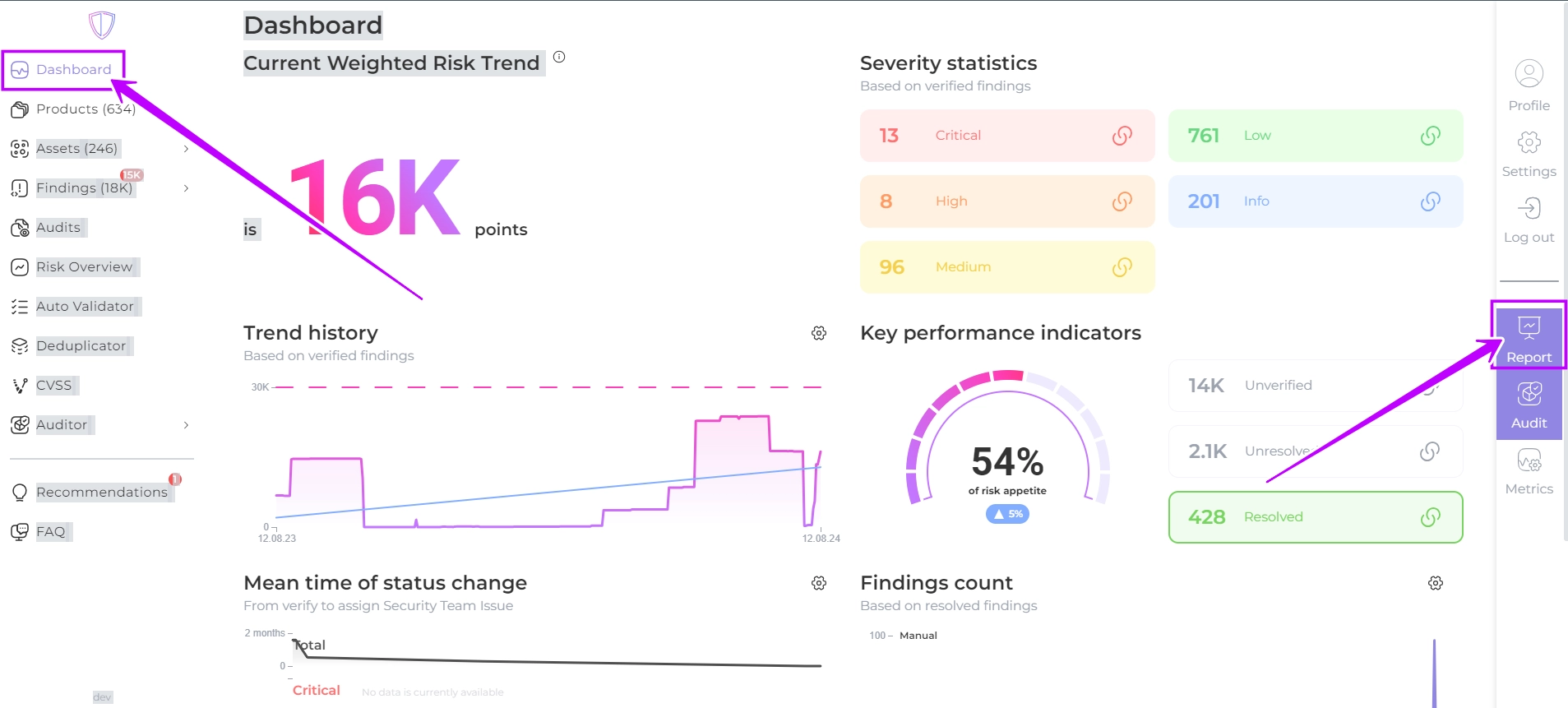
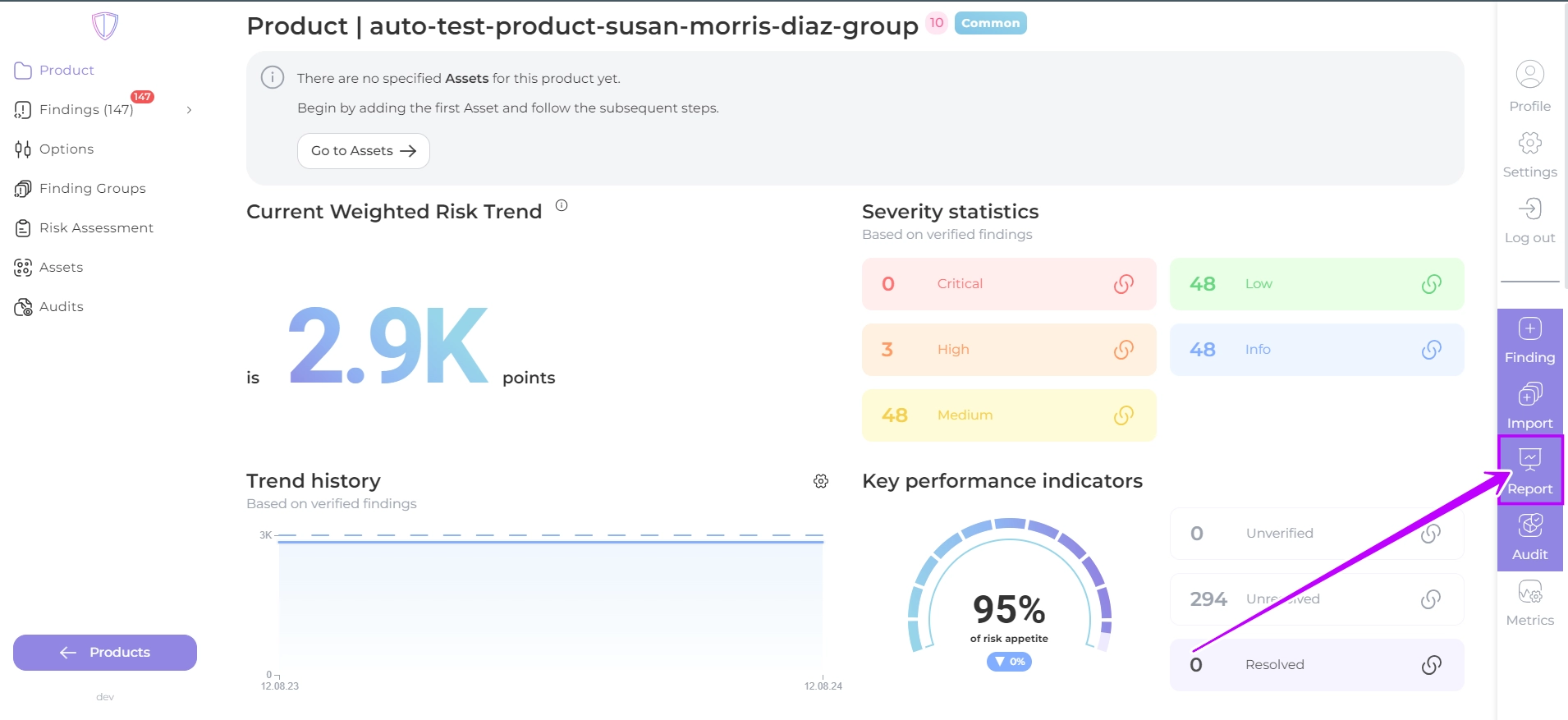
From the Dashboard page or from the chosen Product page click Report
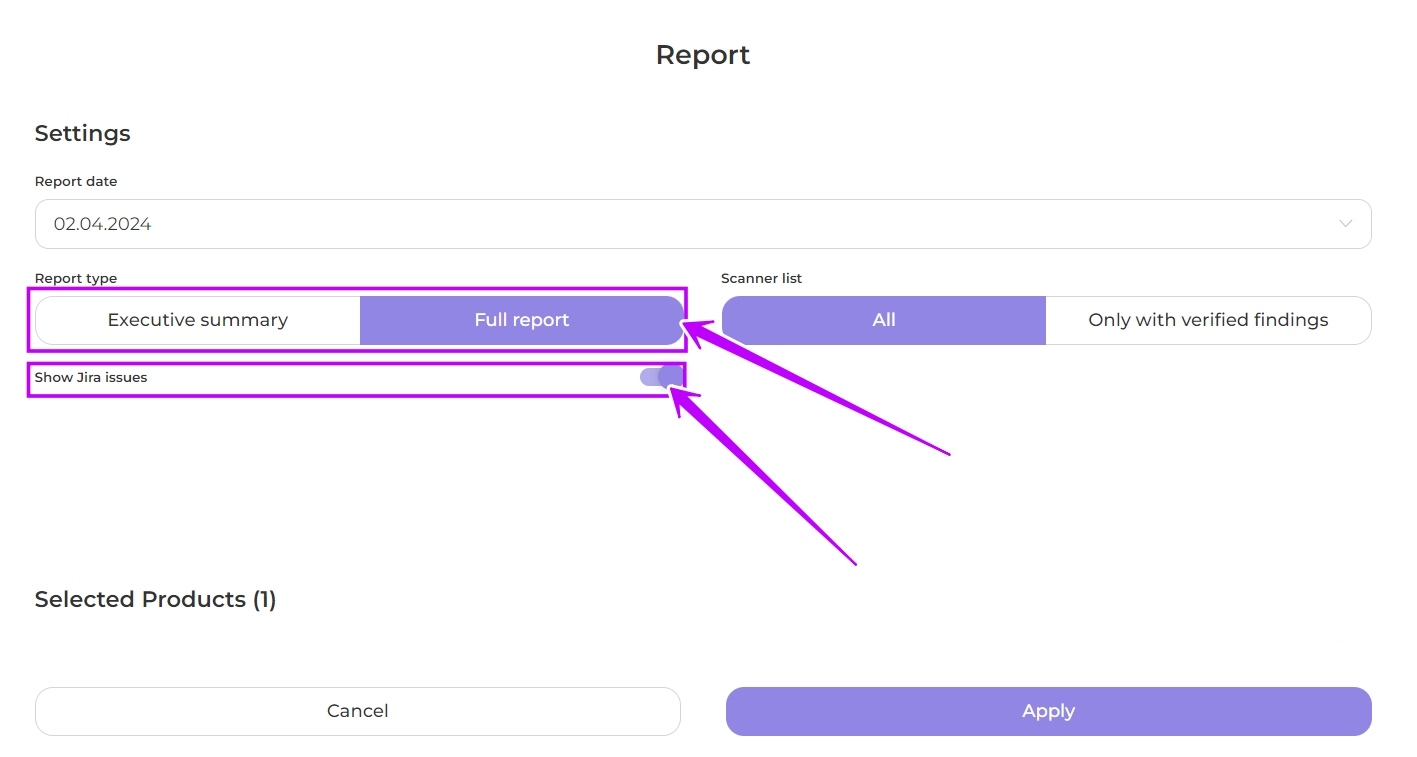
Choose the necessary report settings for its output to meet your goals:
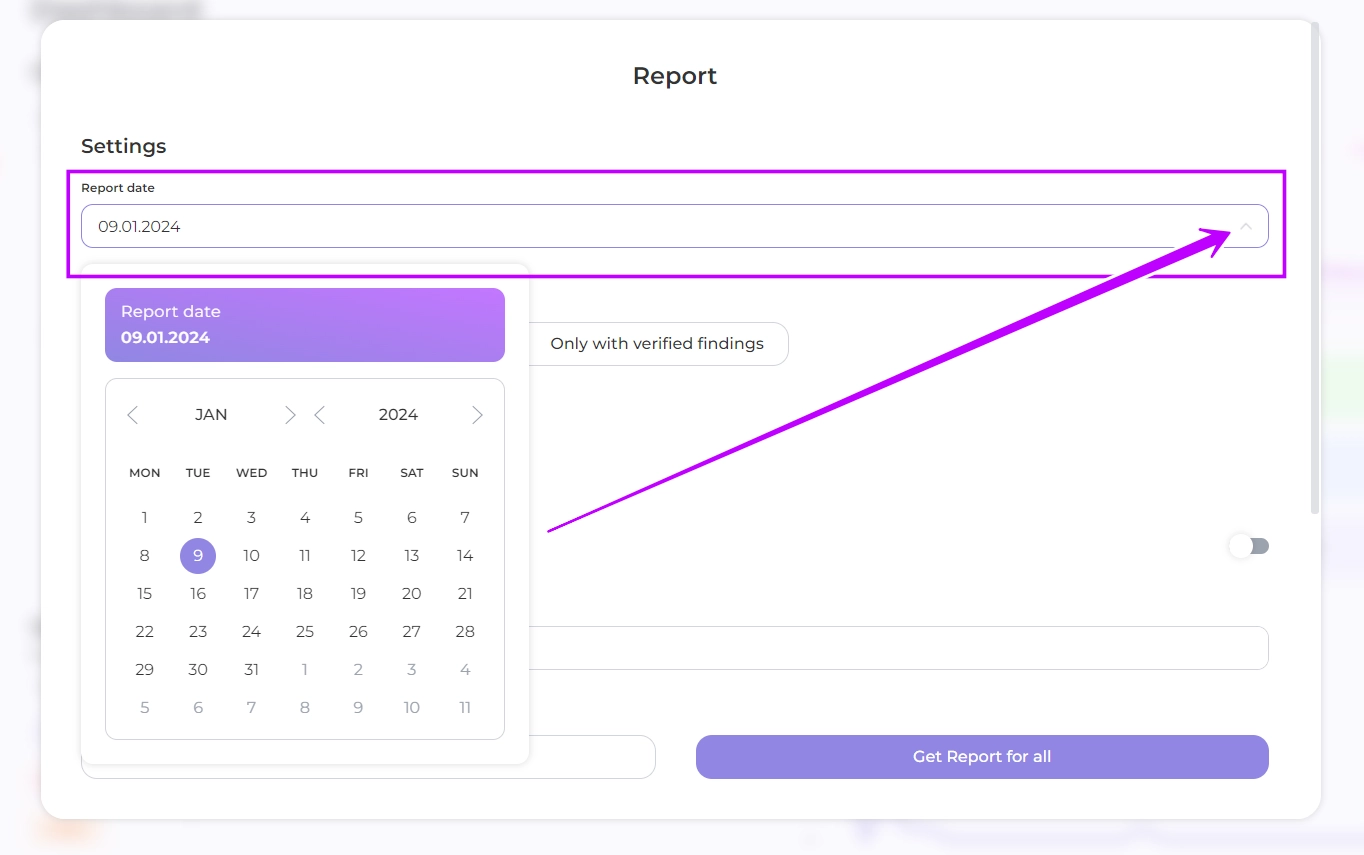
- Report date: select the date you want the report to be generated for, or leave it as the default current date
- Report type: select a Executive summary or a Full report detailing each finding
In the full report, you can add Jira issue information by turning the slider
Report sections preview
Expand a section to see what it looks like in the generated report.
Cover Page
Cover Page

Executive summary and Full report example
Overview
Overview
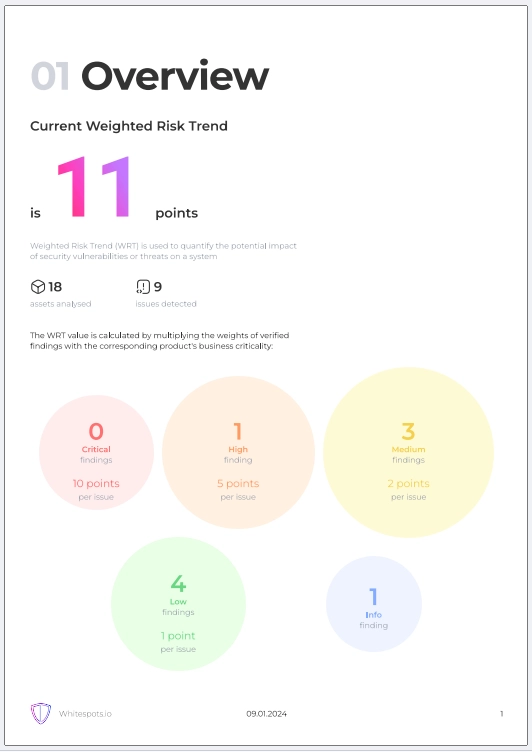
Executive summary and Full report example
General Information
General Information
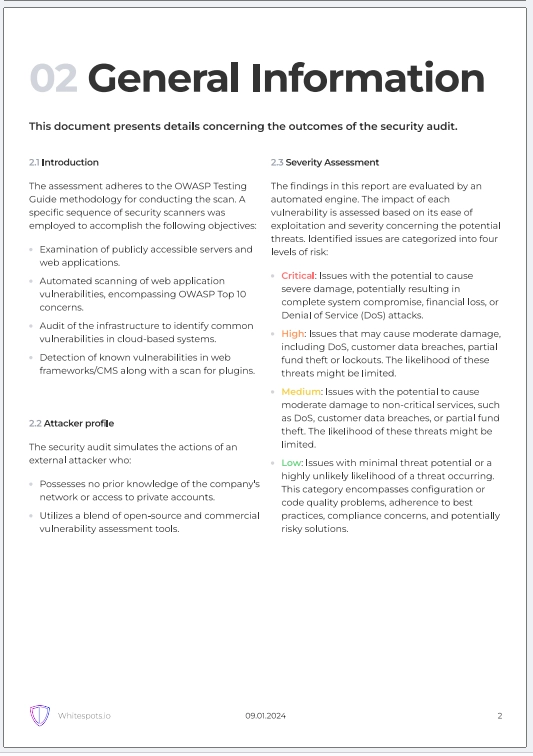
Executive summary and Full report example
Assets
Assets
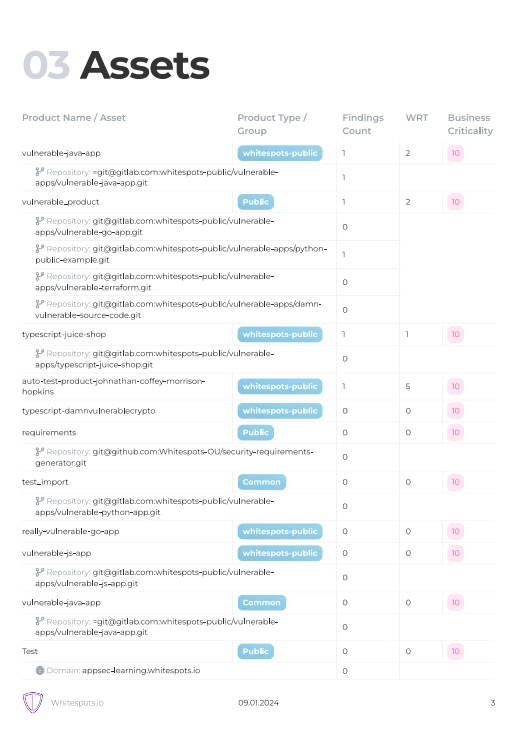
Executive summary and Full report example
Executive Summary
Executive Summary
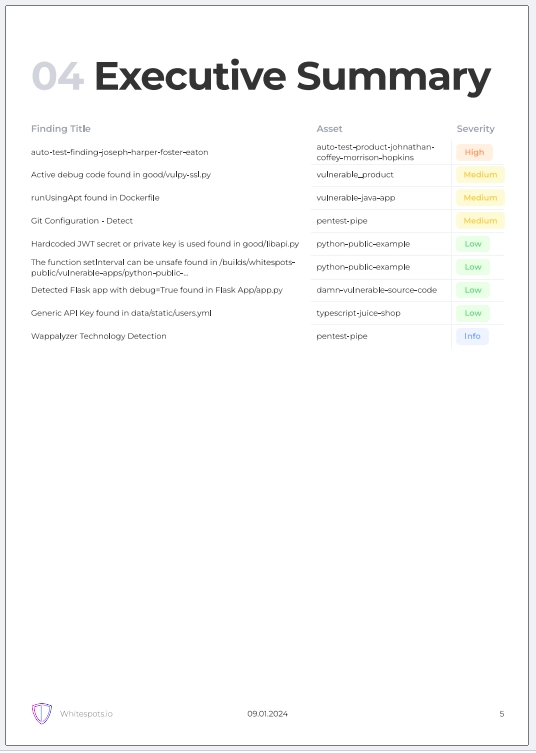
Executive summary and Full report example
Used Scanners
Used Scanners
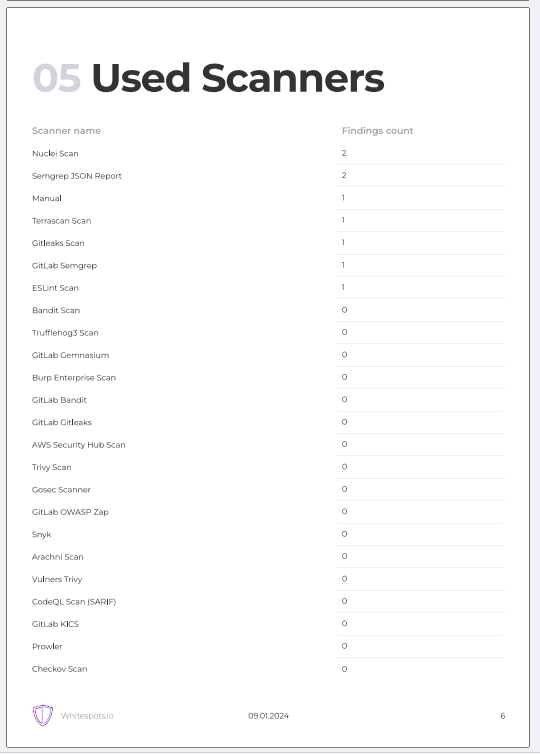
Executive summary and Full report example
Findings
Findings
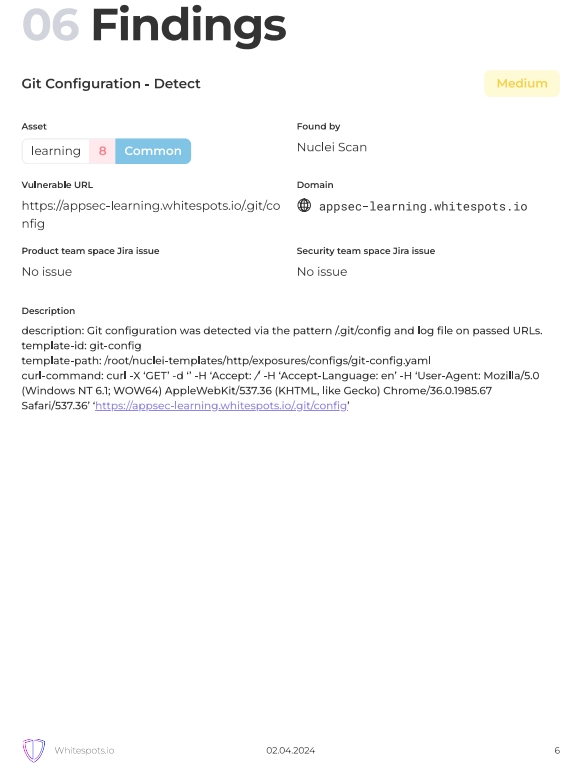
Full Report example
- Scanner list: select whether to report all or only verified findings
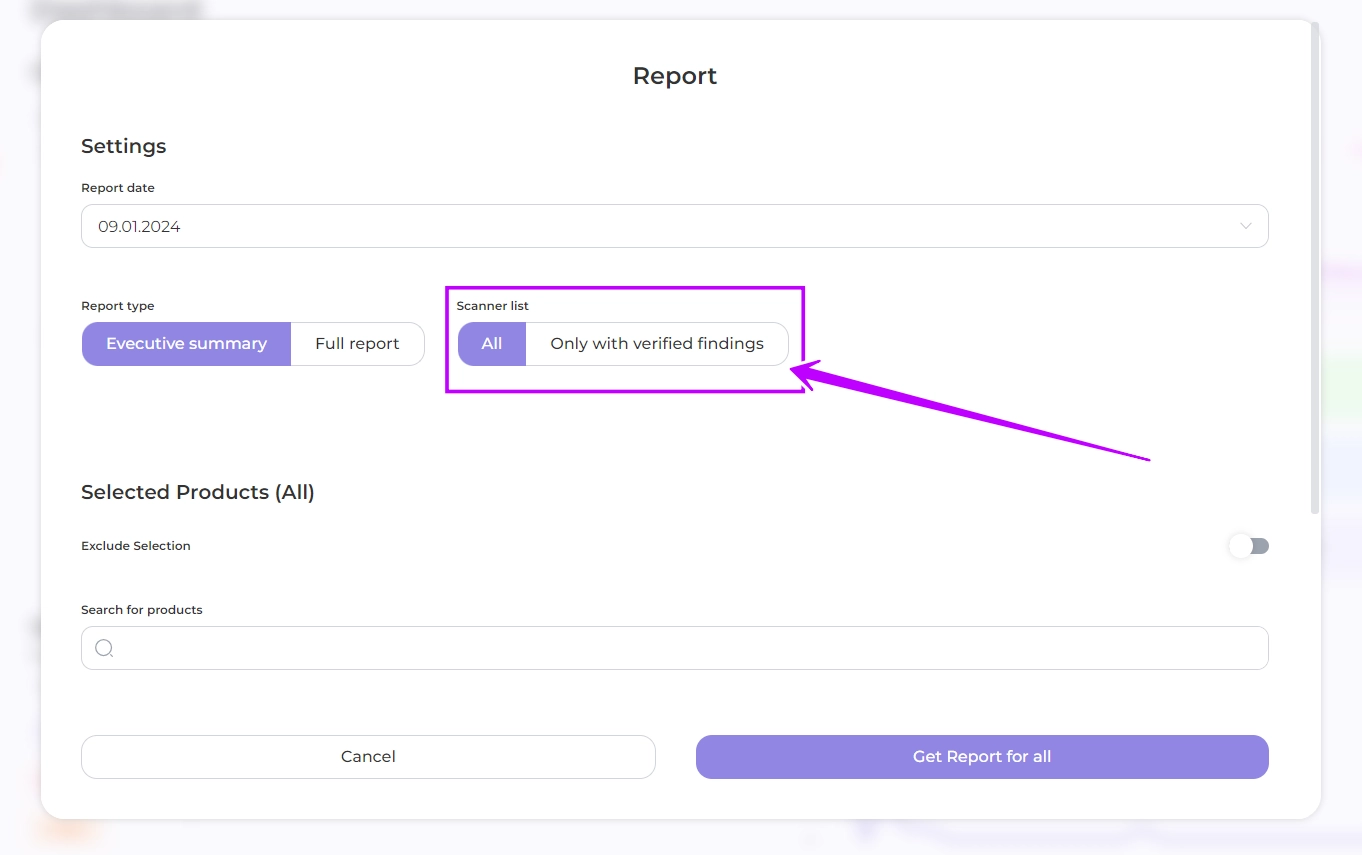
- Select products: Select the products to be included or excluded from the report by clicking on each product, using the search or advanced search options. Alternatively, all products will be included in the report by default.
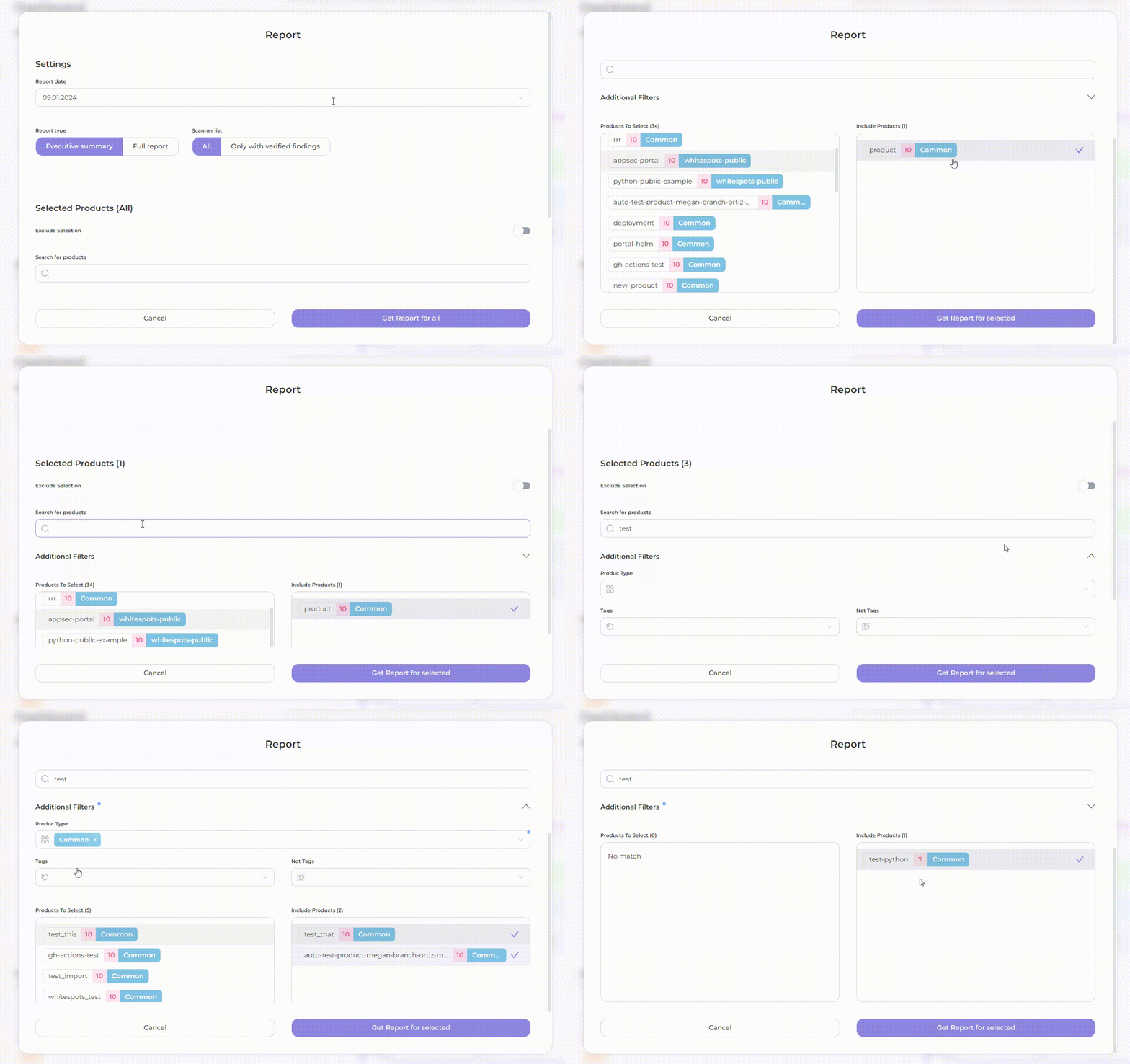
- Click Get Report for selected and have a report back in a second
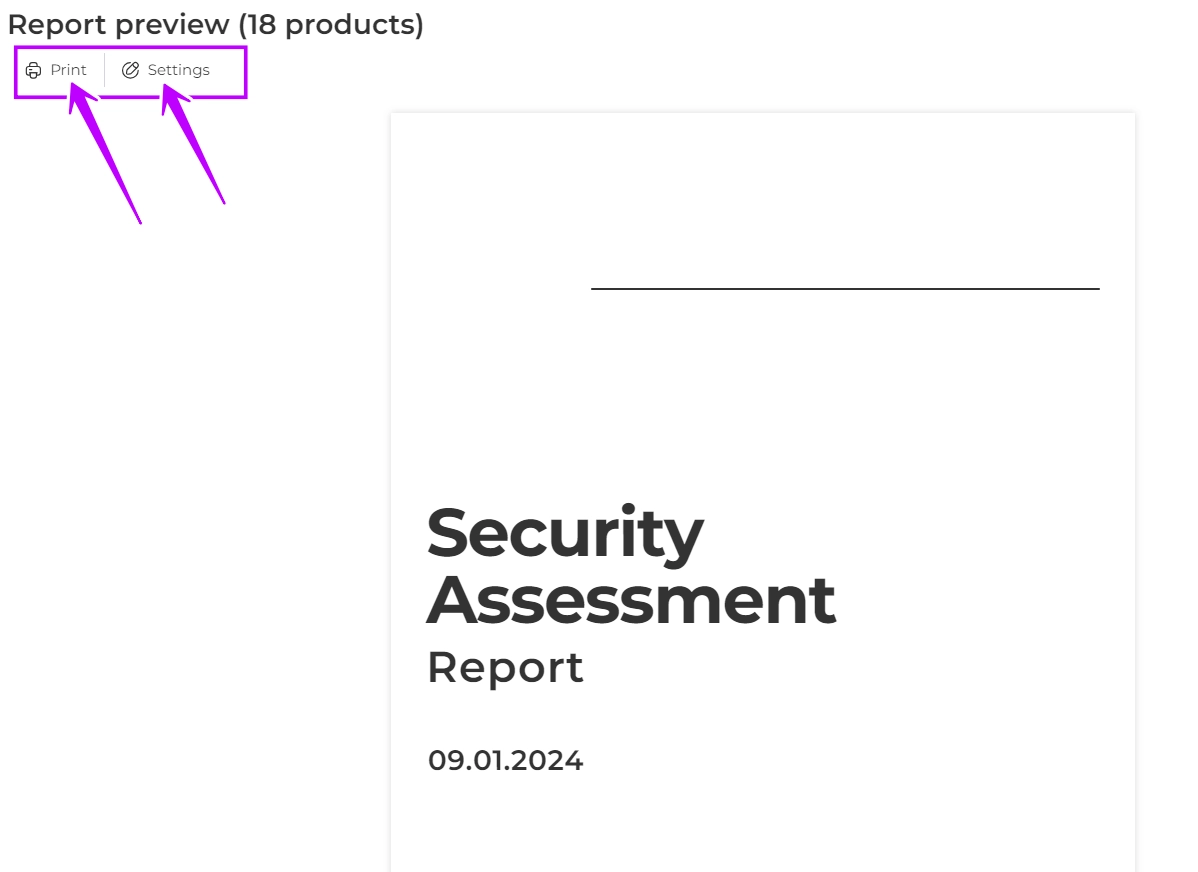
- If necessary, print the report or change the setting parameters