Direct use of Auditor
If you are using Auditor without the AppSec Portal, directly:
- Preconfigure Auditor
if you are using your own images for job (scanners), preconfigure Auditor
- Create pipeline
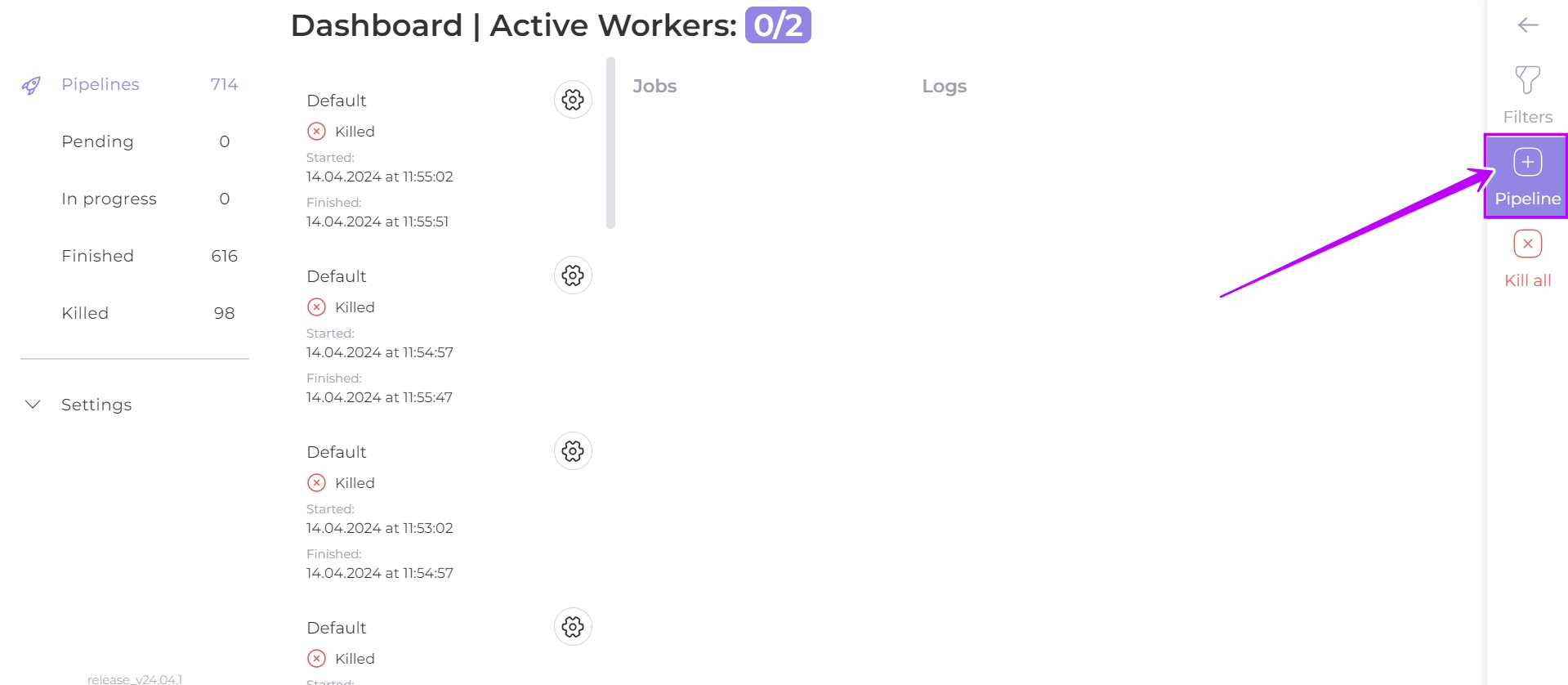
On the dashboard page click on  button
- Add Jobs
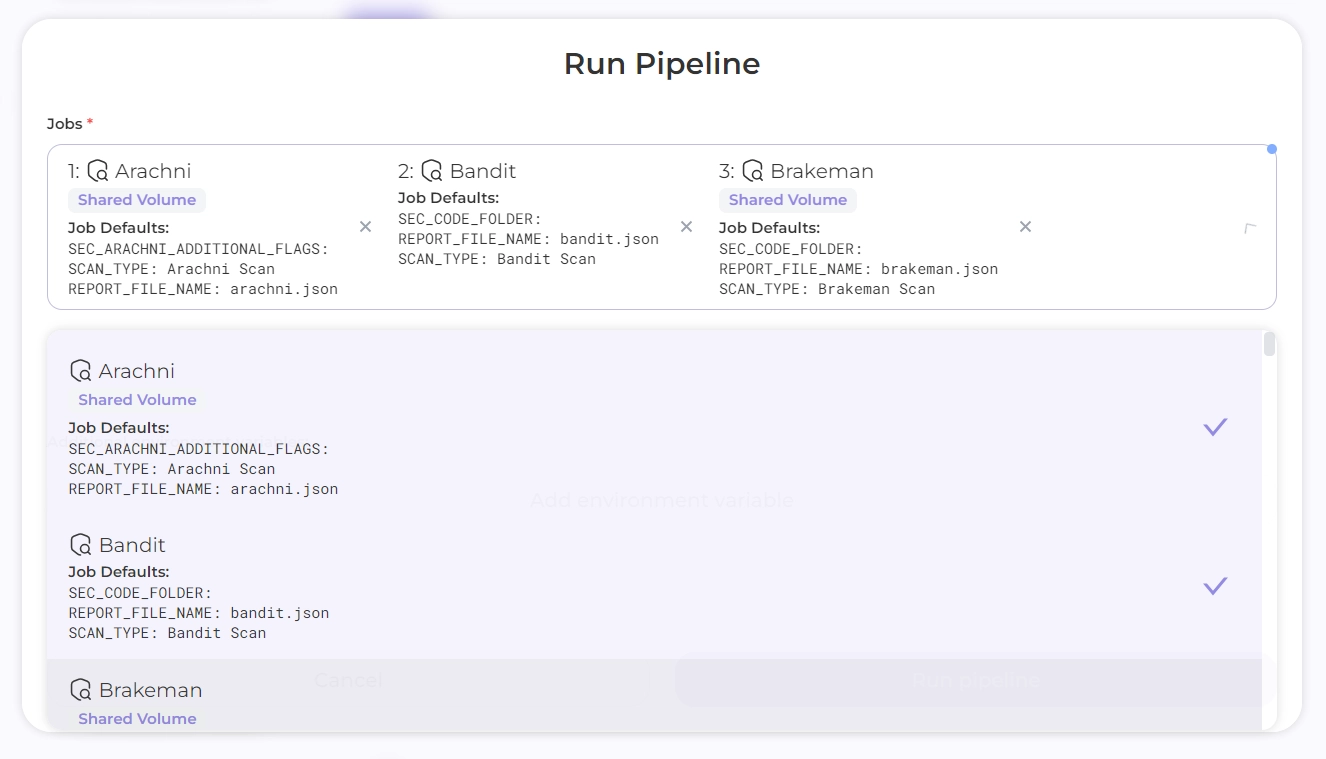
Click on the Jobs field and create a sequence of jobs (scanners) by selecting the required jobs from the drop-down list
Scanning will be performed sequentially based on the selected set of jobs
- Add environment variables
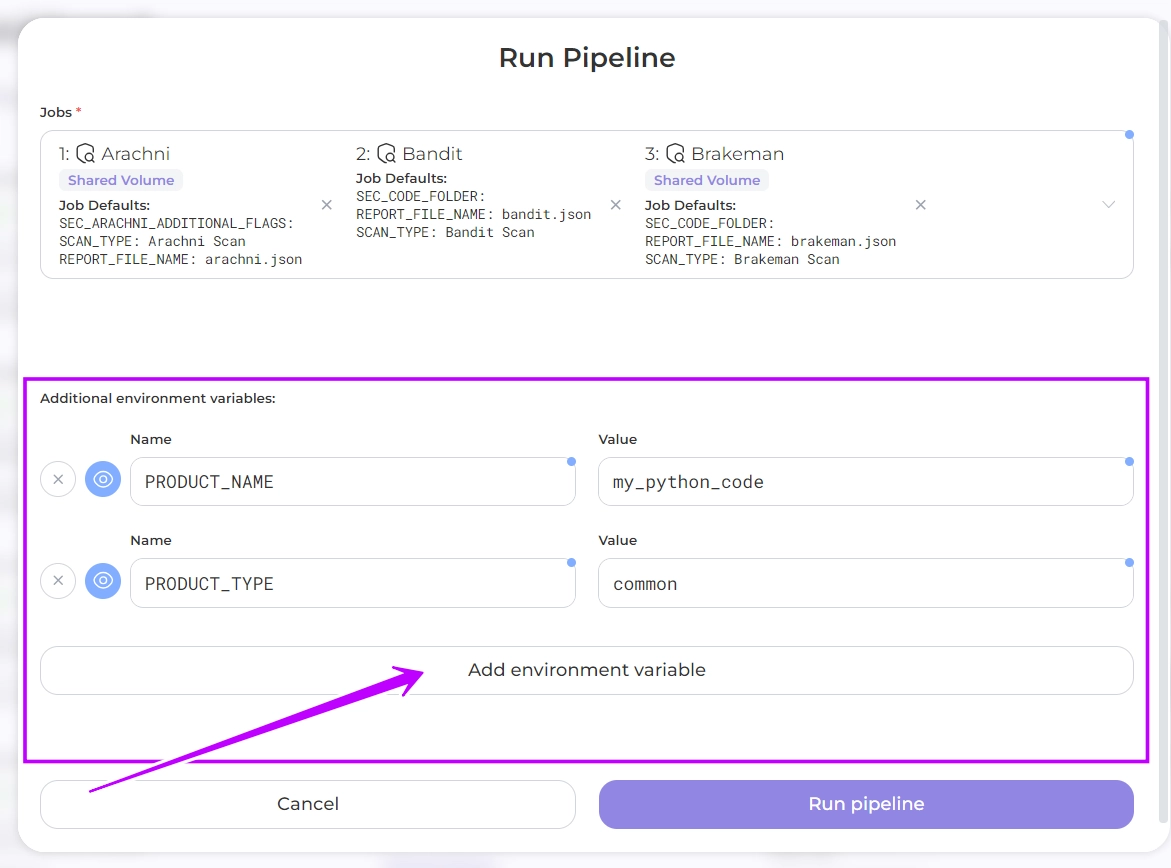
The variables require you to specify information about your product and its location
| Name | Description |
|---|---|
PRODUCT_NAME | name of your product |
PORTAL_IMPORT_URL | address where reports will be sent (delivery point) |
PORTAL_TOKEN | credentials for delvery point |
REPOSITORY | URL of the cloned repository to be scanned, where the code will be checked in |
DOCKER_IMAGE | reference to a list of your docker images, e.g. registry.gitlab.com/whitespots-public/appsec-portal/back/appsecportal:latest |
DOMAIN | domain of your web product |
HOST | IP address of your web product |
Optionally you can specify other variables that you need to set
- Run pipline
Click Run pipeline
The scanning of your product will commence.
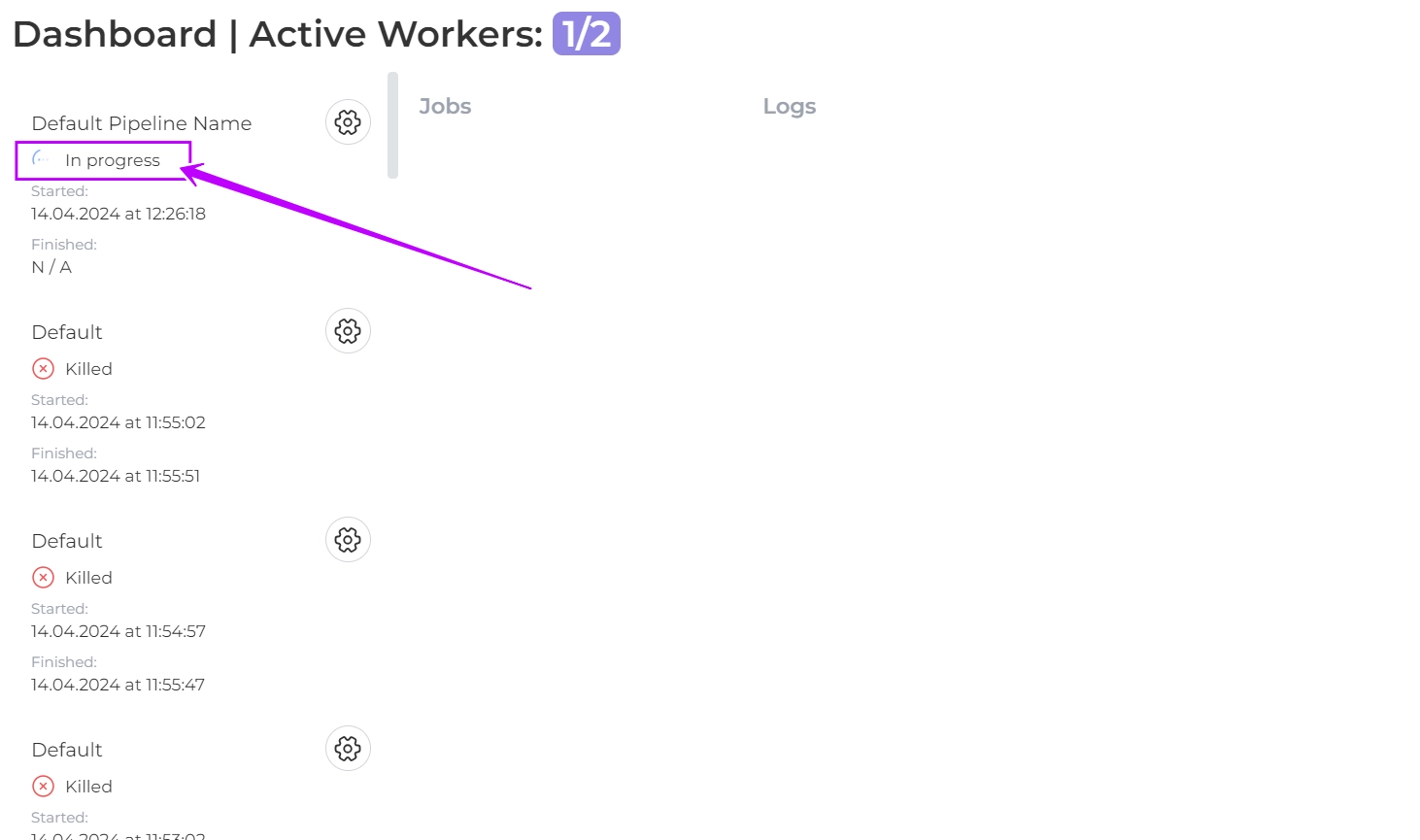
After all the jobs in your pipeline have finished their work, the status of the Pipeline will change from In progress to Finished
- Get Results
At the location specified by the environment variable (PORTAL_URL), retrieve reports from each scanner in your pipeline
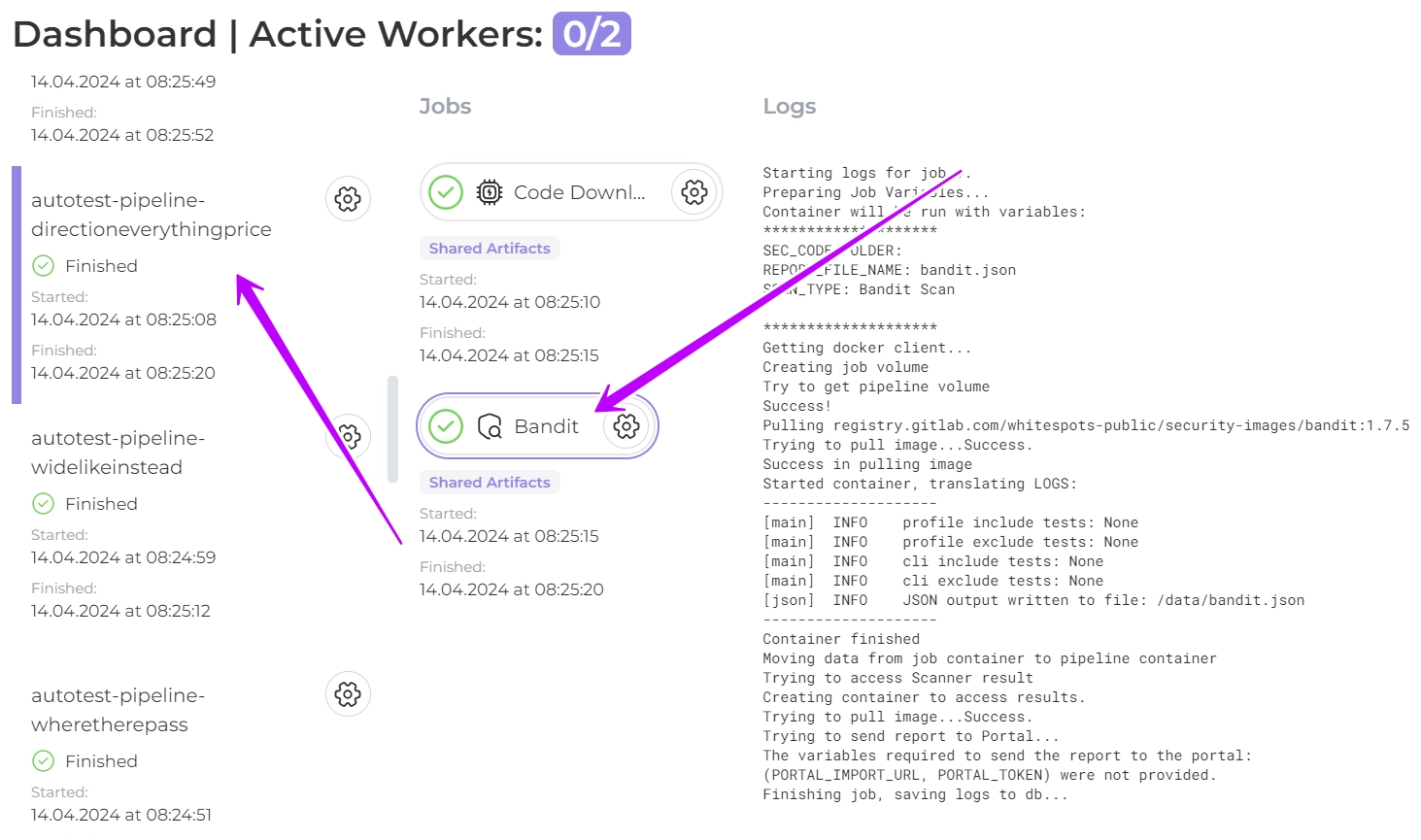
Clicking on a pipeline provides information about the Jobs in it, as well as Logs for each of them
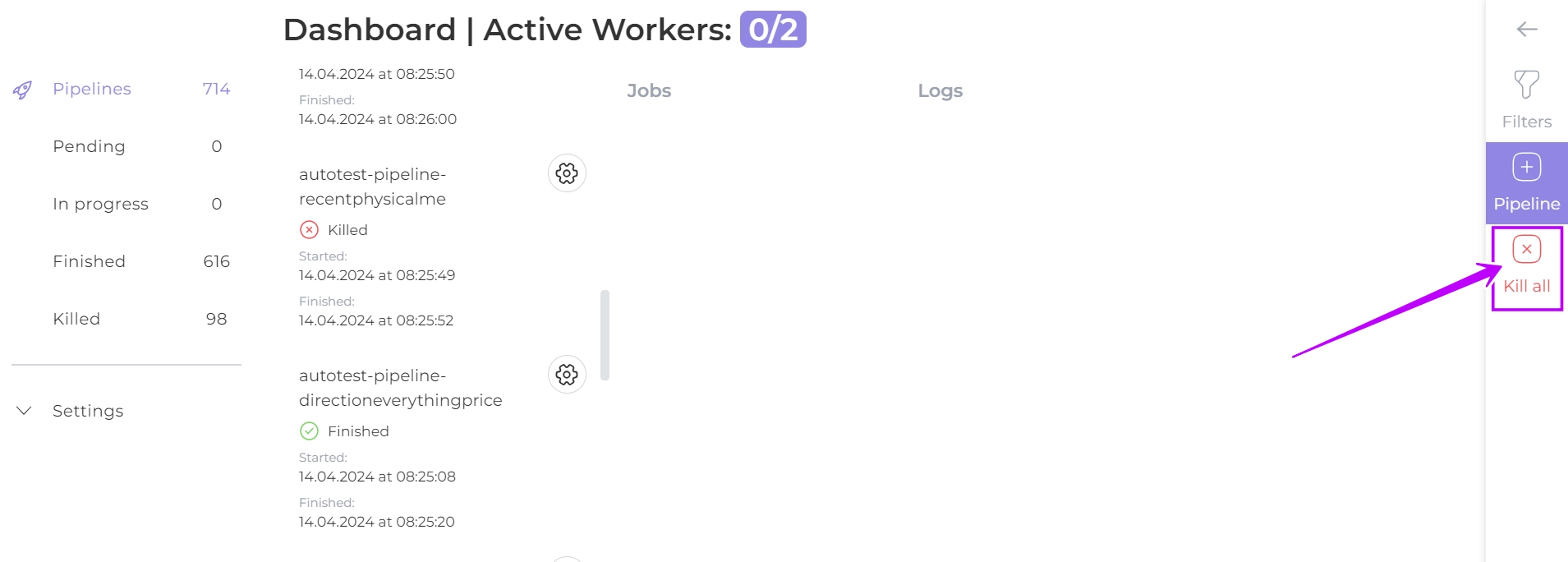
You can bulk delete all pipelines by clicking on the button 
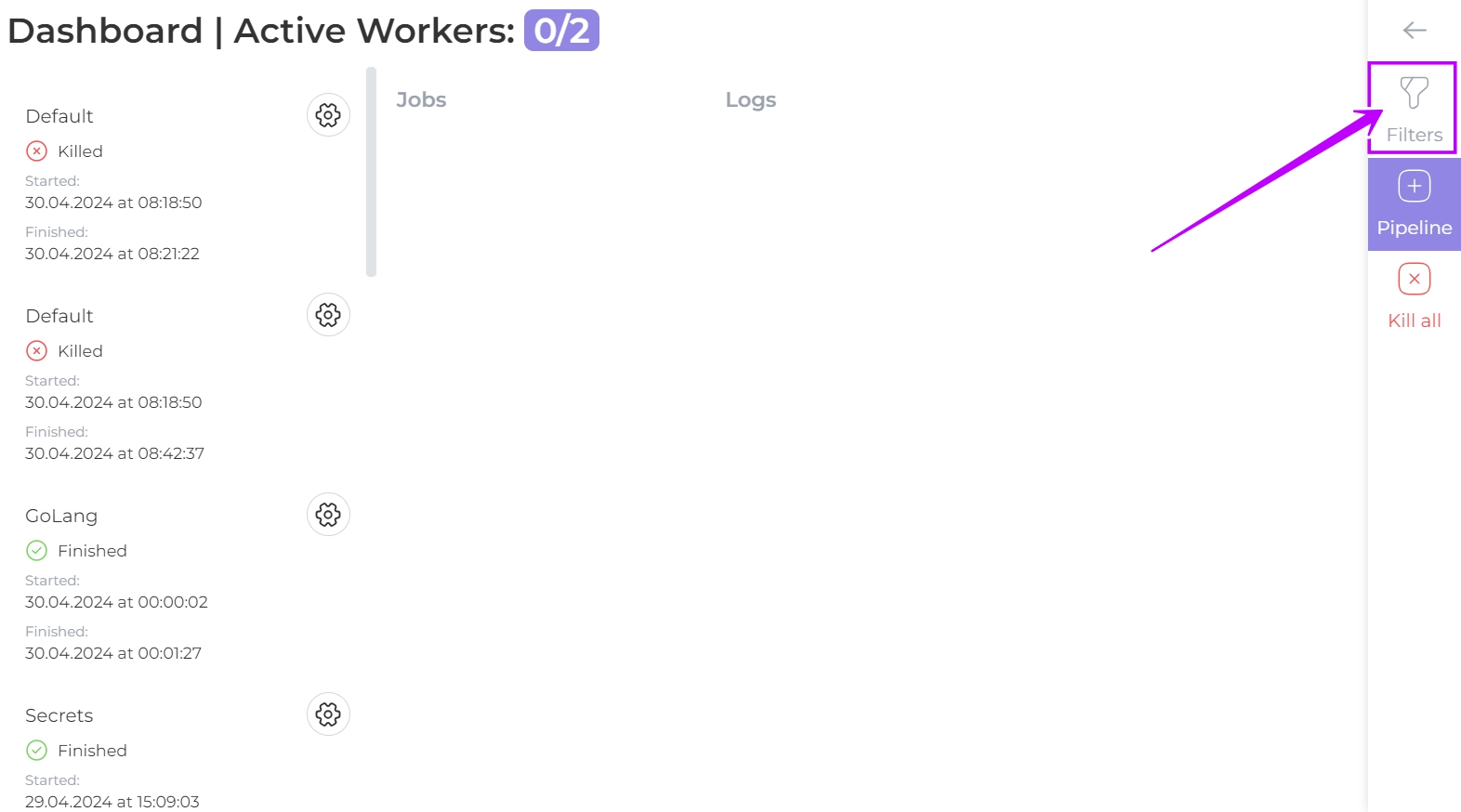
You can also filter the available pipelines by clicking on the filter button in the right panel.
You can filter your results by Job name and/or status