GitLab SSO
The following steps describe the state of GitLab at the time of creating this instruction. The GitLab interface may change, so for the most up-to-date information, refer to the official source
To log in to the AppSec portal through your GitLab account, follow these steps:
- Navigate to your profile settings in GitLab and select the “Applications” tab.
- Click “Add new application”
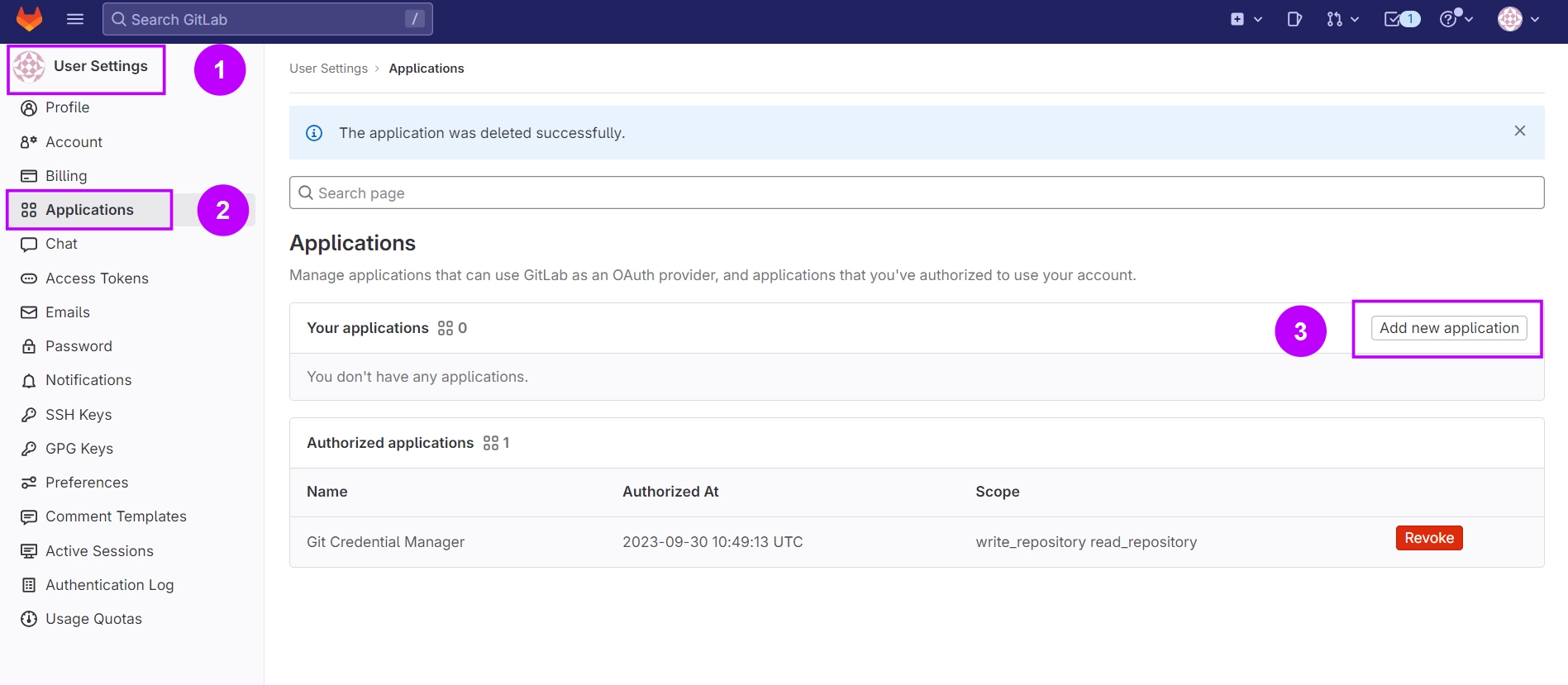
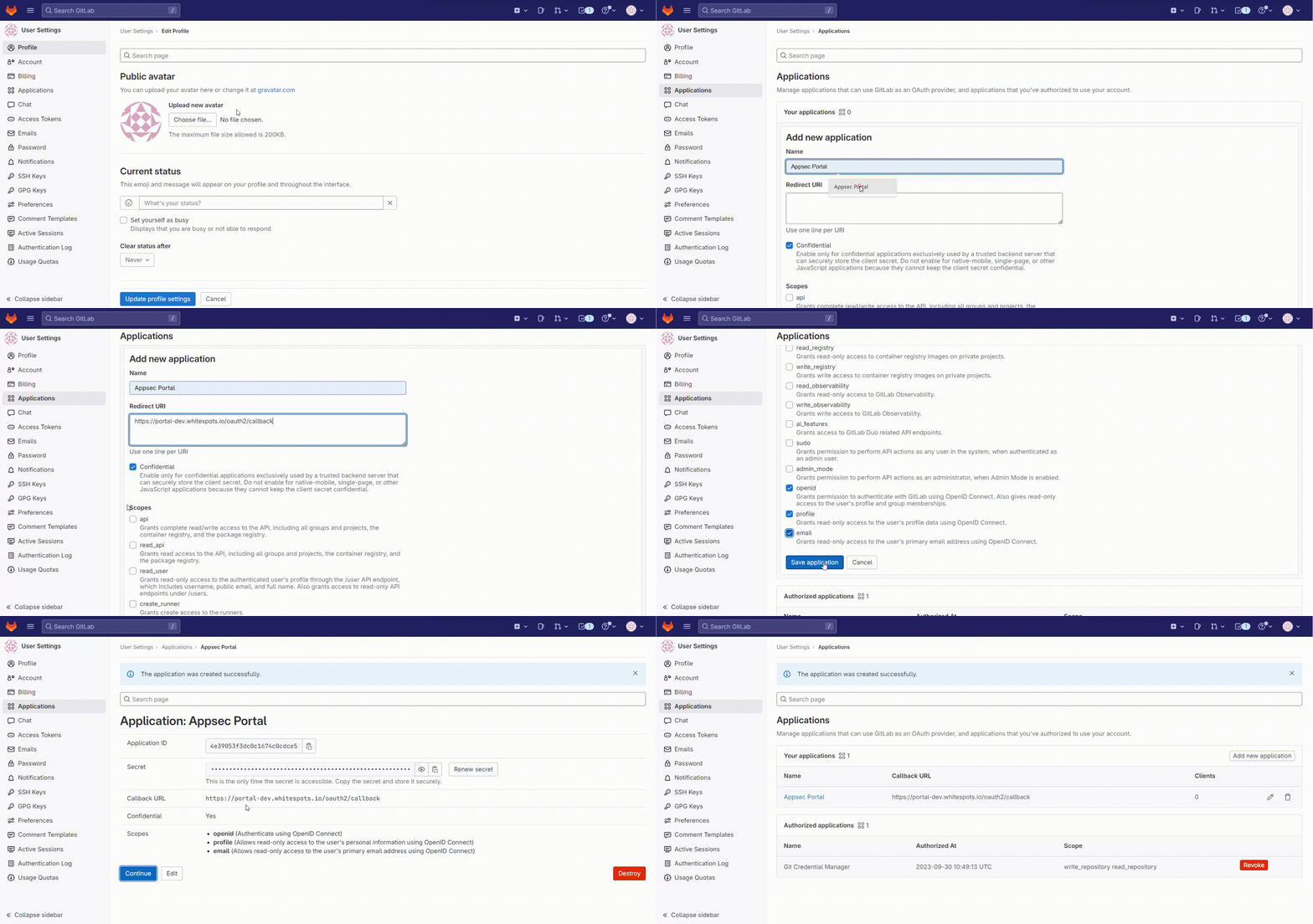
- Fill in the fields:
- Name - Enter the name of the application as desired
- Redirect URI - _**https://portal-dev.whitespots.io/oauth2/callback**_ 
- Ensure that the “Confidential” connection option is selected
- Choose the scope of information to be shared: openid, profile, email, read_api (if you want to sync repositories)
- Click “Save application”
Use the data created for your application to configure SSO integration in the AppSec portal:
- Domain: gitlab.com
- Client ID: <Application ID>
- Client Secret: <Secret>
- Scopes: <Scopes>
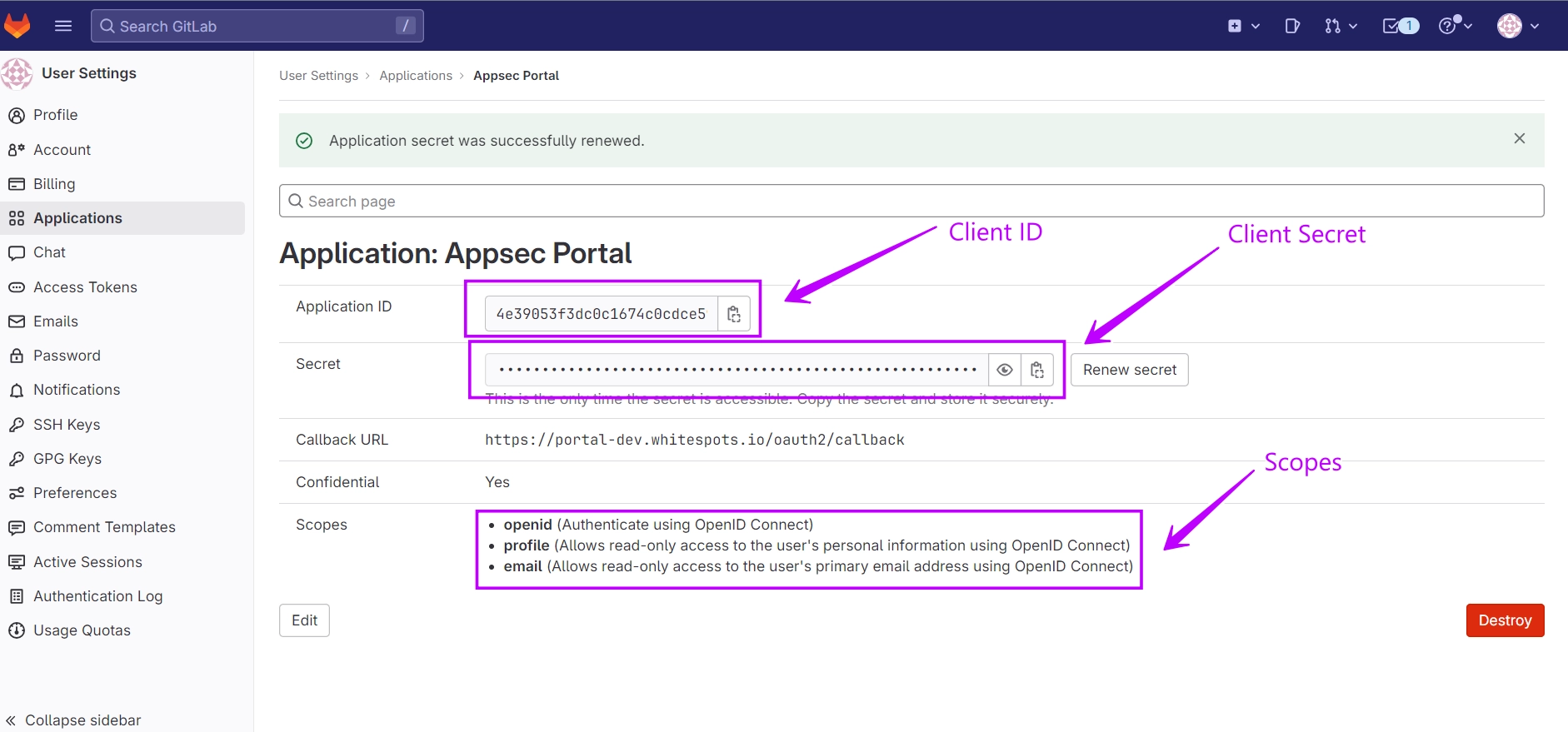
These settings will allow you to use your GitLab account to log in to the AppSec portal