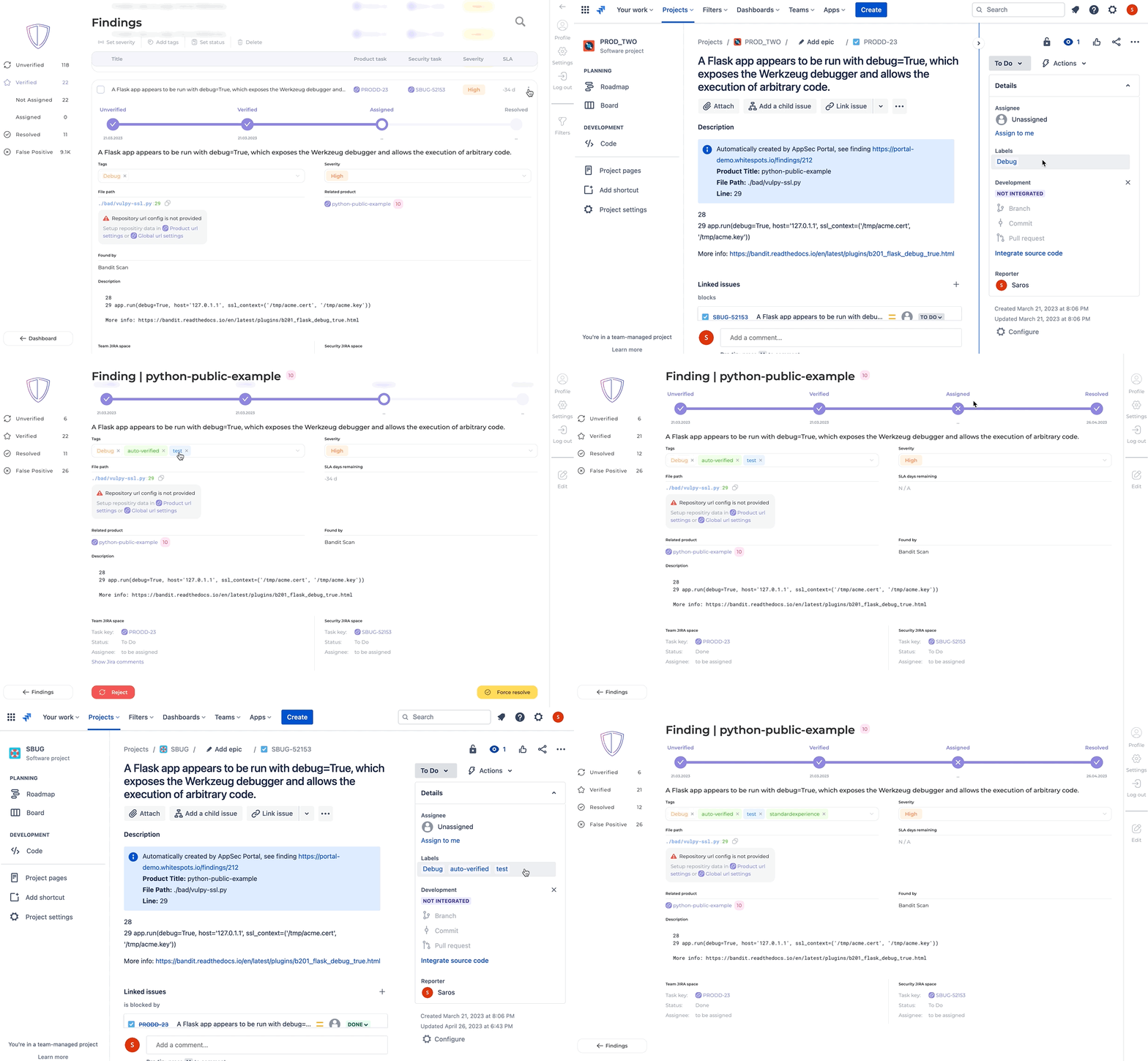
Setting up Jira webhook
Step 1: Create a new webhook in Jira
- Log in to your Jira instance.
- Navigate to the space you want to integrate with AppSec Portal.
- Click on the “Settings” icon on the right side of the header.
- Select “System” from the dropdown menu.
- Select the “WebHooks” from the menu on the left side of the screen.
- Click on the “Create a WebHook” button.
For cloud Jira instance: https://<instance>.atlassian.net/plugins/servlet/webhooks
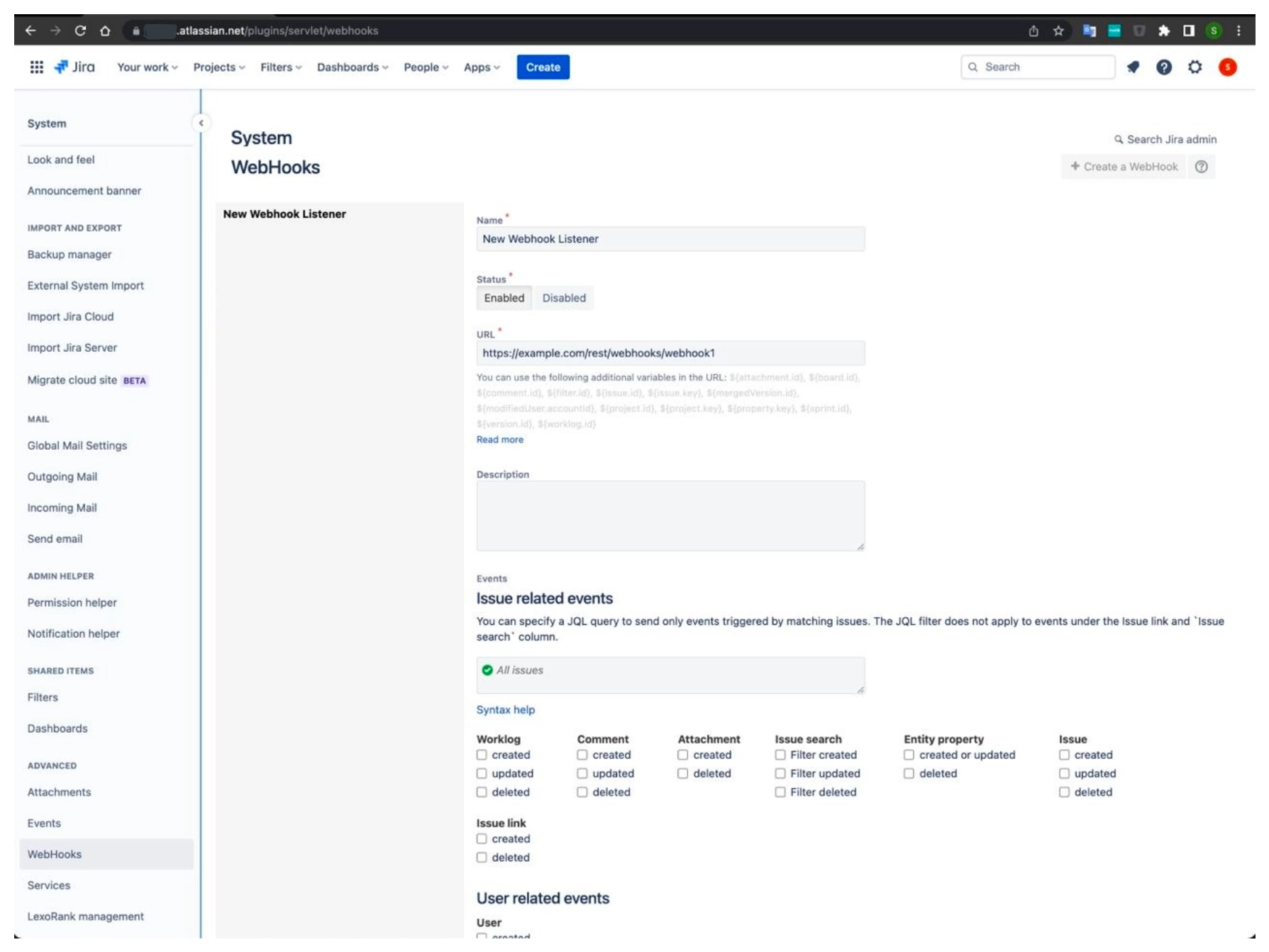
"Create a WebHook" page
Step 2: Configure the webhook in Jira
- Enter a name for the webhook in the “Name” field.
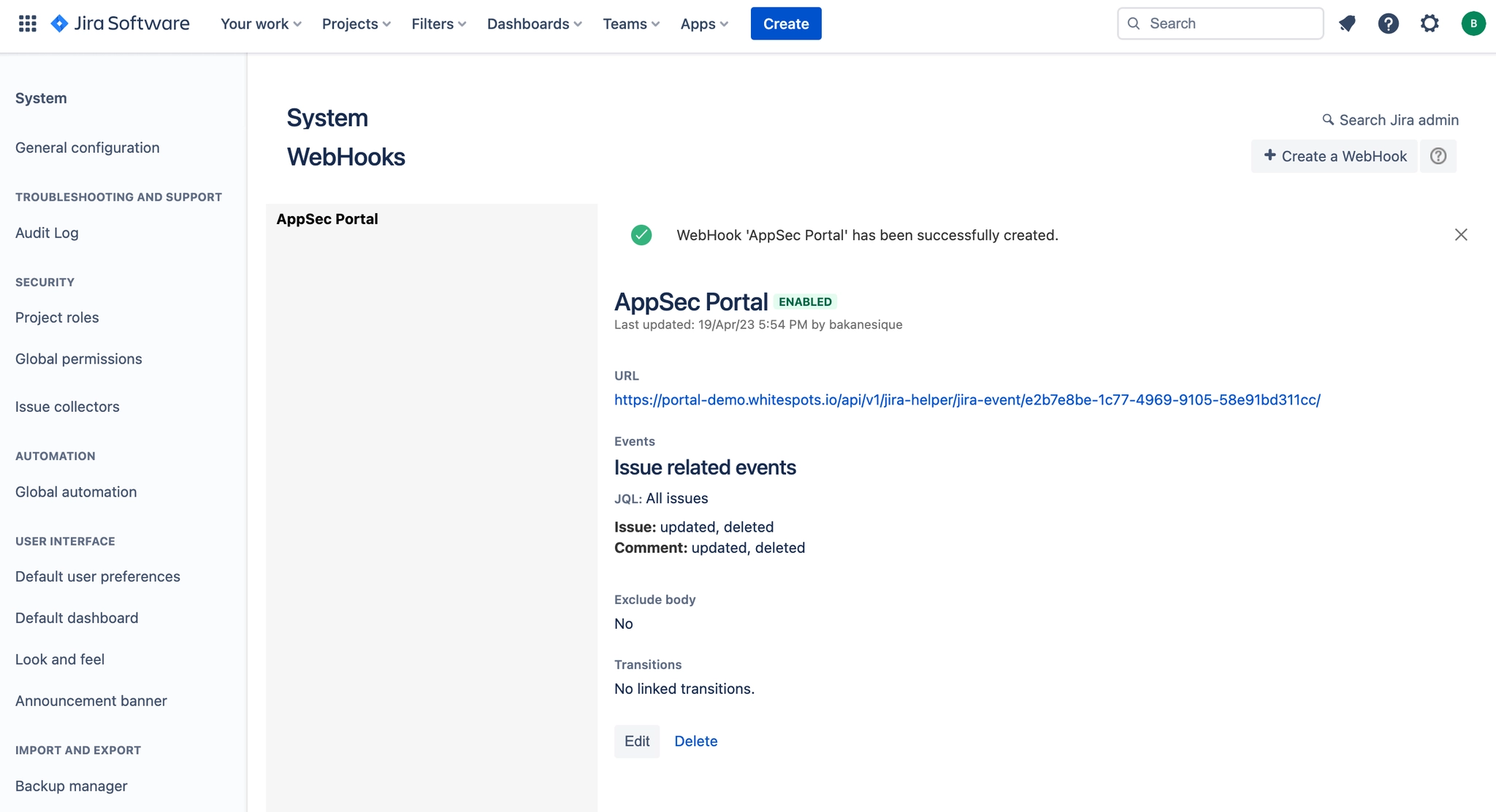
- Enter the webhook URL provided by AppSec Portal in the “URL” field.
The webhook URL provided is an endpoint within the AppSec Portal’s API that Jira can use to send events or data.
In the example below, the URL has several components separated by forward slashes:
https://<appsec-portal-host>/api/v1/jira-helper/jira-event: This is the route for the webhook that receives the Jira event.e2b7e8be-1c77-4969-9105-58e91bd311cc: This is a unique identifier (token) that is associated with the specific webhook event. This identifier is used to ensure that the event is coming from a trusted source and to match the incoming event with the corresponding webhook configuration. {% endhint %}
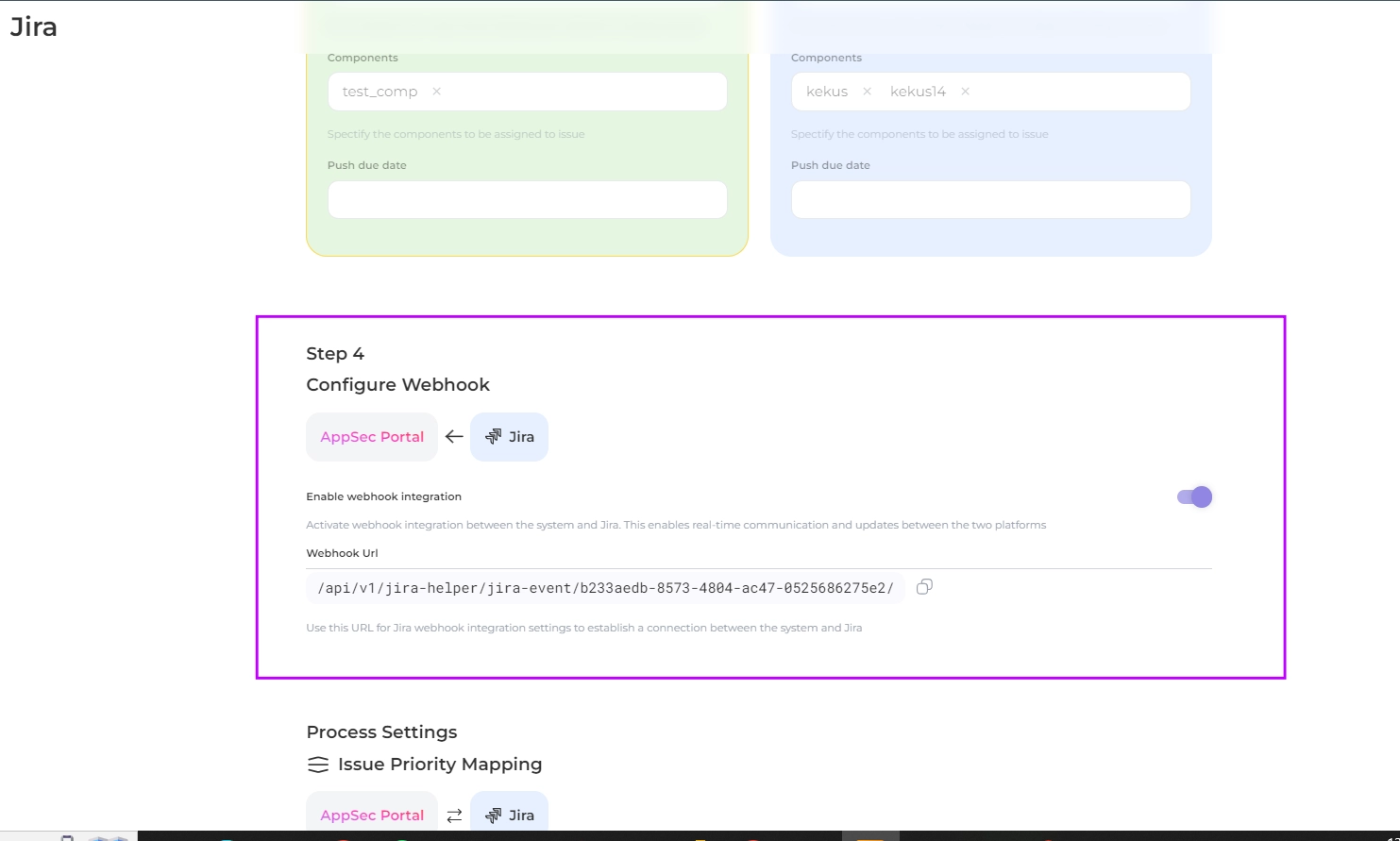
- Select the “Issue related events” that will trigger the webhook:
- check the “updated” and “deleted” boxes in the “Issue” and “Comment” columns.
- Select the scope: all issues.
- Leave the “Exclude body” option unchecked.
- Save your changes.
Example configuration
Example configuration
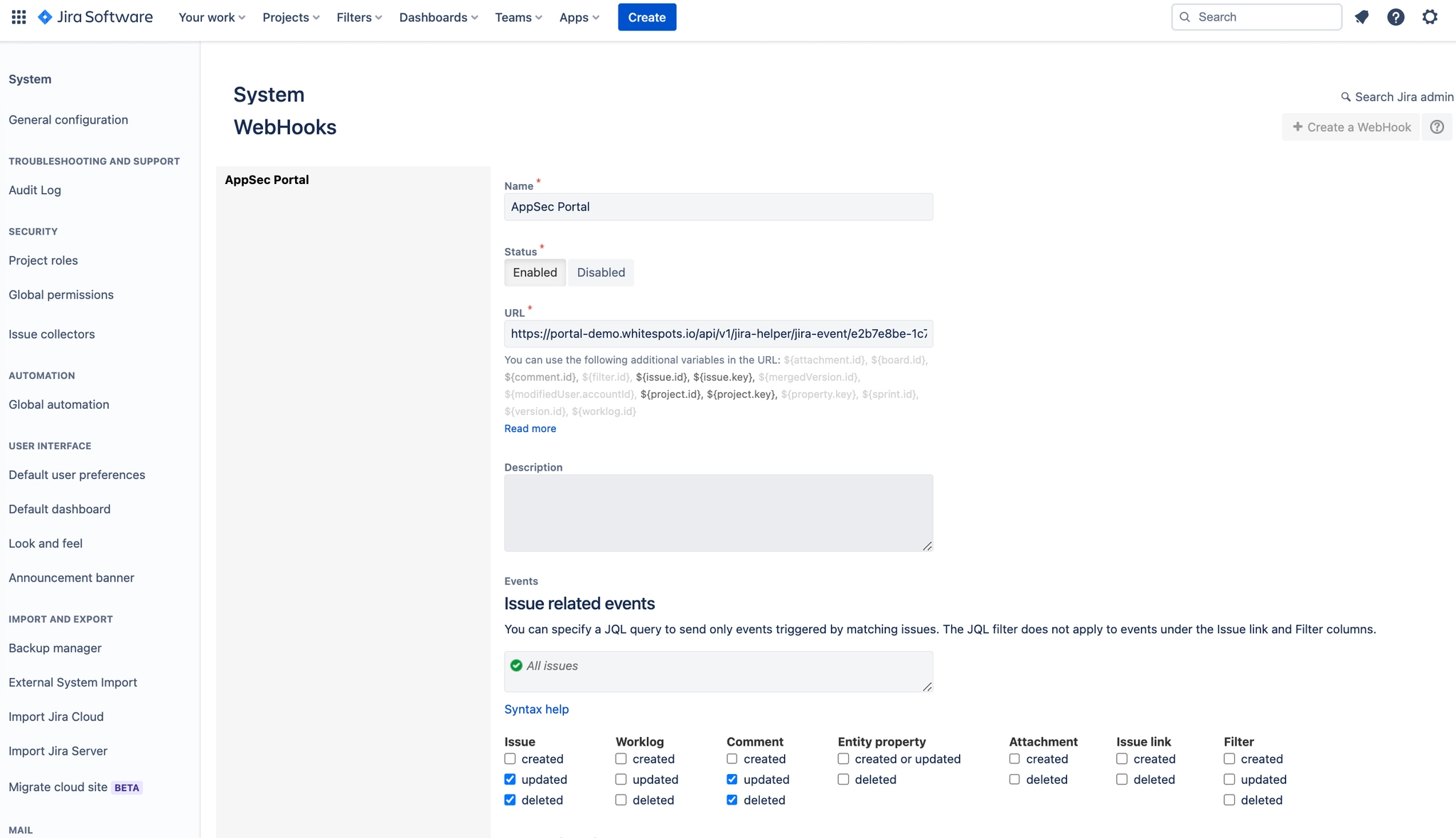
Successfully created webhook
Successfully created webhook
Step 3: Test the webhook
Now you can test the webhook by adding a label or changing the status of a task in Jira and see if the corresponding updates are reflected in the AppSec Portal.